

Train models on your data.
Deploy them on your GPUs.
Supervisely trains computer vision models such as YOLO26, DEIMv2 and SAM 3 on your labeled data, in the browser and without code, then deploys them on your own GPUs to pre-label data or serve predictions through an API.
 Surgical tools · 2620 images in 2 datasets
Train YOLO and other models on your own dataset, without code.
Open a labeled project, pick a training app from its Neural Networks menu and follow the steps. The app trains on a GPU machine you connect and shows epochs, losses and metrics as it goes.
-
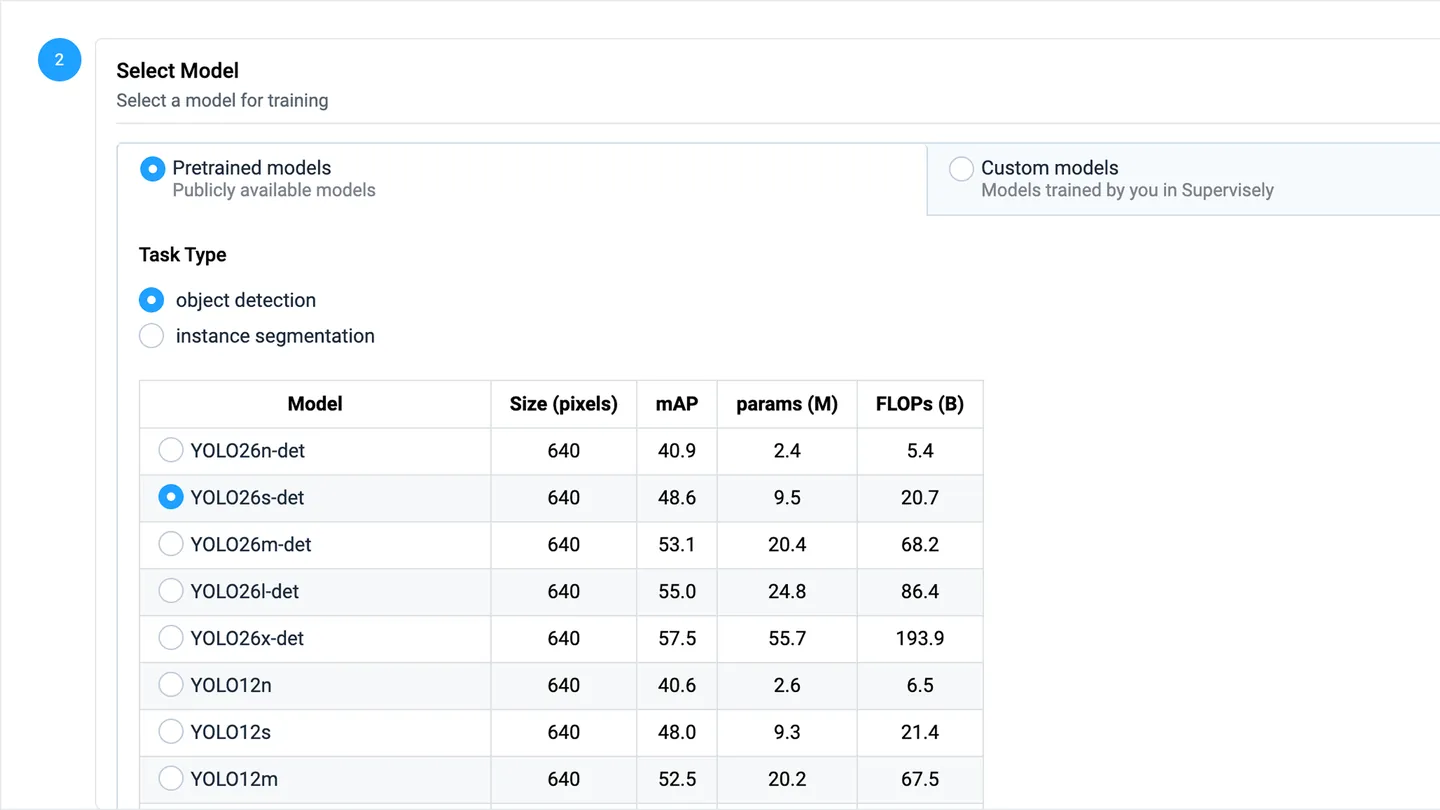
Model. Start from a pretrained checkpoint, for example one trained on COCO, or from a model you trained before.
-
Classes and split. Pick the classes to learn and split the data into train and validation sets at random, by tags, by datasets or by collections.
-
Hyperparameters. Set epochs, batch size, image size, learning rate and augmentations in a YAML editor, or keep the defaults.
-
Evaluation and export. Add an evaluation report and a speed test, and export detectors to ONNX or TensorRT.
-
Start. Choose the GPU and start. Charts and logs update live, and TensorBoard is one click away.
When training ends, checkpoints, logs and reports are saved to Team Files, and the run appears on the Experiments page.
Models you can train today, each with its own app in the Ecosystem
- Train YOLO v8 - 26
YOLO26 to YOLOv8
Object detection, instance segmentation and pose estimation with YOLO26, YOLO12, YOLO11, YOLOv10, YOLOv9 and YOLOv8 checkpoints.
- Train DEIMv2
DEIMv2
Real-time object detection with DEIMv2 checkpoints built on DINOv3, plus DEIM checkpoints of D-FINE and RT-DETRv2.
- Train RT-DETRv2
RT-DETRv2
A real-time detection transformer for object detection, trained on your classes.
- Train MMDetection 3.0
MMDetection 3.0
Object detection and instance segmentation models from the OpenMMLab toolbox.
- Fine-tune Segment Anything 3
Segment Anything 3
Fine-tune SAM 3 on your objects for promptable segmentation and tracking in images and videos.
- Fine-tune Segment Anything 2.1
Segment Anything 2.1
Fine-tune SAM 2.1 for interactive segmentation in images and videos.
Every training run is an experiment you can compare and reproduce.
The Experiments page keeps every model your team trains next to its data, settings and results, so the best one is easy to find and put to work.
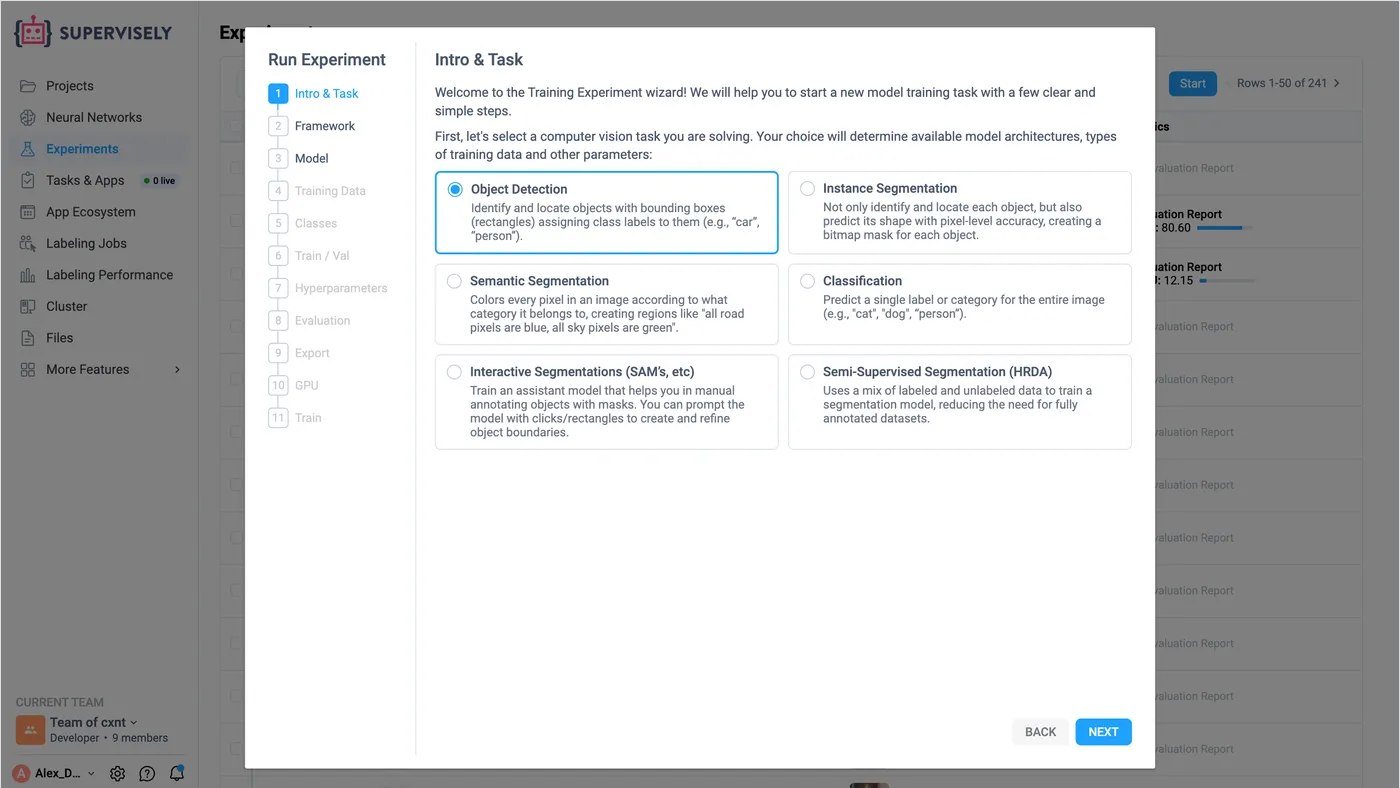
- Model, framework, task, GPU and training time
- A saved version of the training data for image projects on Pro and Enterprise, so the run can be reproduced
- Hyperparameters, TensorBoard logs and every checkpoint
- The evaluation report of the best checkpoint, and comparison reports for two or more models
- Deploy, Apply Model, Finetune on new data or Train New with the same settings, in one click
New runs start from the same page, with a wizard that walks through the task, framework, model, data, classes, split, hyperparameters, evaluation, export and GPU.
Run training and inference on your own GPUs.
Connect a workstation, a server or a cloud machine once, then start training, serving and prediction on it from the browser.
-
One command to connect
On the Cluster page, add an agent and run the generated command on the machine. The agent is a small Docker container, and it needs no static IP address or network setup.
-
Your hardware stays yours
Only your team can use your agents, and only the tasks you start run on them. Supervisely never uses them for anyone else.
-
Many machines, many experiments
Connect several GPU machines and run experiments side by side. Each task gets its own container, and the agent streams its logs and uploads the results.
-
Linux, Windows, cloud or Kubernetes
Install the agent on Ubuntu, on Windows through WSL, from an AWS AMI or in a Kubernetes cluster. A machine without a GPU still runs CPU tasks.
Deploy a model in a few clicks or with one API call.
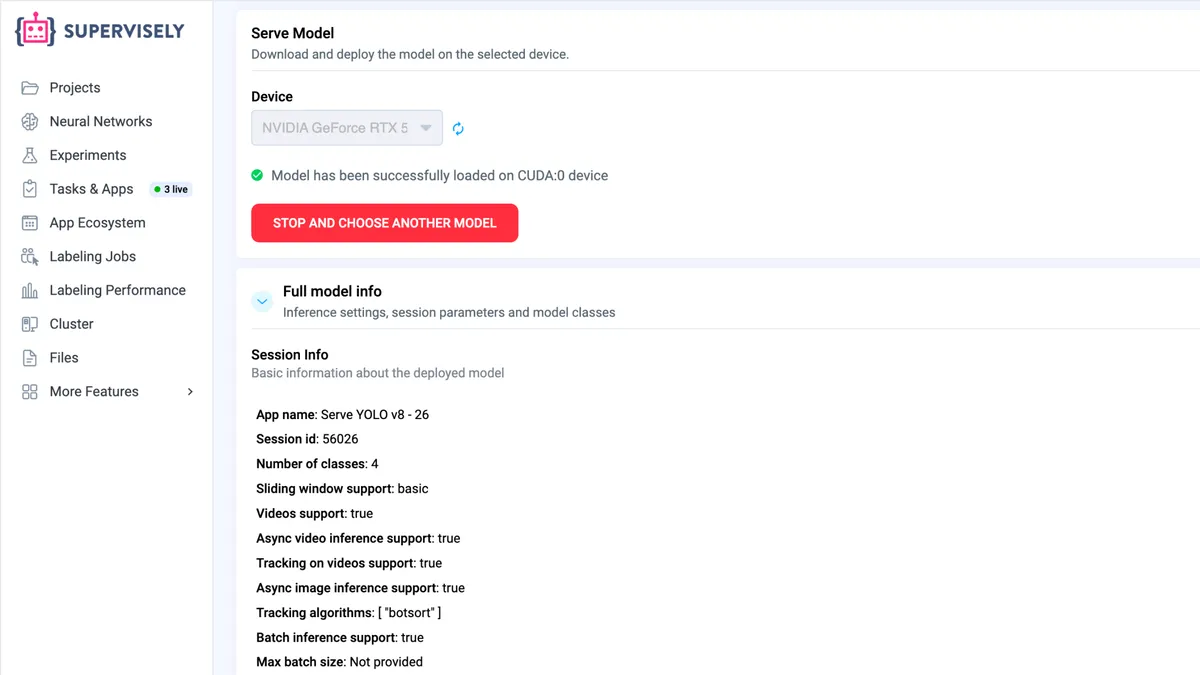
A serving app loads a pretrained checkpoint or one you trained onto the agent you choose and starts an inference server. The Prediction API in the Python SDK does the same from code.
Serving apps in the browser
Run Serve YOLO v8 - 26, Serve DEIMv2, Serve Segment Anything 3 or another serving app from the Ecosystem, pick a checkpoint, the device and the runtime, and press Serve.
The Prediction API in Python
api.nn.deploy() starts a model and returns an object whose predict() takes images, folders, videos, URLs, arrays or project IDs, and can write the results back to a project.
import supervisely as sly

api = sly.Api.from_env()

# Deploy your checkpoint from Team Files on one of your agents
model = api.nn.deploy(
    model="/experiments/27_Lemons/392_RT-DETRv2/checkpoints/best.pth",
    device="cuda:0",
)

# Predict a folder of images, a video, a URL or an array
for p in model.predict(input="images/", conf=0.5):
print(p.name, p.classes, p.scores)PyTorch, ONNX Runtime or TensorRT
Serve a checkpoint in PyTorch, or in ONNX Runtime or TensorRT for optimized inference. The SDK converts it on deploy.
On your server or in Docker
Each serving app is also a FastAPI server you can run on your own machine or with docker run, and predict from the command line.
Outside Supervisely
Download checkpoints in PyTorch, ONNX or TensorRT format and load them in your own code, starting from the demo scripts in the model's GitHub repository. No vendor lock-in.
Pre-label new data with the models you trained.
A deployed model works across the platform: on whole projects, inside the labeling tools and on videos. People review and fix its labels instead of drawing every object.
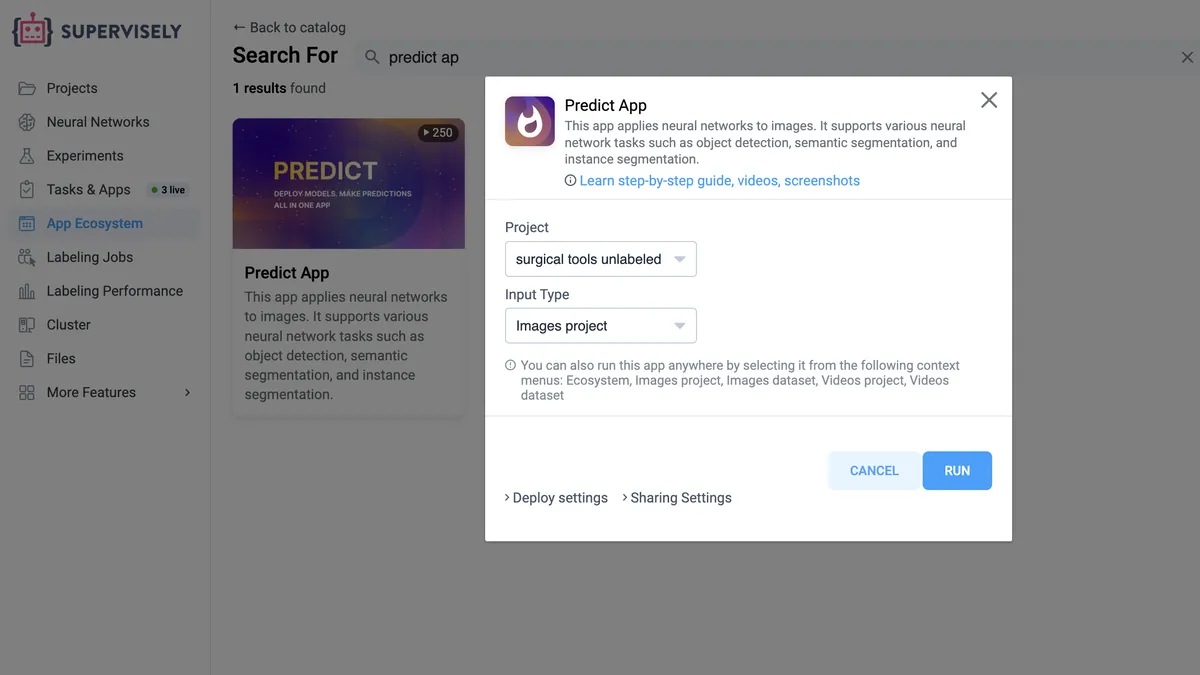
Pre-label projects and datasets with the Predict App
Pick images or videos, connect to a deployed model or deploy one, keep the classes you need, preview the result on a random item and run. Predictions go to a new project or into the source one, merged with its labels or replacing them.
Straight from an experiment
Apply Model on the Experiments page opens the Predict App with that checkpoint.
Videos with tracking
On videos, the model runs frame by frame, and BoT-SORT links its boxes into tracks with IDs.
Models inside the labeling tools
Annotators apply a deployed model to the image they have open, keep only the classes they need and correct what it missed. Segment Anything 3 and other interactive models power the Smart Tool.
Models in a chain
Run a detector, then a classifier on every box it finds, in one app.
Live Training
On Enterprise, a detection or segmentation model trains while the team labels and pre-labels each next image.
Bring your own architecture with the Python SDK.
Training apps such as Train YOLO v8 - 26, Train DEIMv2 and Train RT-DETRv2 are built on the TrainApp class of the open-source Supervisely SDK, and serving apps on its Inference class. Wrap your model in them and it gets the same dashboards, experiments and API.
TrainApp
Describe your models in models.json and the defaults in hyperparameters.yaml, then write the training function. TrainApp adds the GUI, data download and splits, project versions, evaluation, export and upload to Team Files.
Inference
Subclass a task type such as ObjectDetection and implement load_model() and predict(). The model then serves the Predict App, the labeling tools and the Prediction API.
Running your own architectures on the platform is part of the Enterprise edition.
Frequently asked questions.
How do I train YOLO on a custom dataset in Supervisely?
Import or label your images and connect a GPU machine as an agent. Then open the project's menu and choose Neural Networks, YOLO, Train YOLO v8 - 26. Pick a YOLO26 or older YOLO checkpoint, the classes and the train and validation split, and press Start. Checkpoints, logs and the evaluation report are saved to Team Files. Follow the YOLO26 tutorial for every step.
Can I train an object detection model without writing code?
Yes. Training apps such as Train YOLO v8 - 26, Train DEIMv2 and Train RT-DETRv2 run in the browser: you choose the model, classes, split and hyperparameters in a form and watch training live. You only need code to automate training through the API.
How do I deploy a trained model as an API?
Run a serving app such as Serve YOLO v8 - 26 with your checkpoint, or call api.nn.deploy() from the Python SDK. The model runs as an inference server on your agent, and model.predict() returns classes, scores, boxes and masks for images, folders, videos or projects. The Prediction API is part of the Pro and Enterprise plans. Read the Prediction API guide.
Can I deploy a model on my own GPU or server?
Yes. Connect the machine to Supervisely as an agent with one command, and serving apps run on it. Without the platform, the same serving code runs on your server or in a Docker container, and you can download the checkpoint in PyTorch, ONNX or TensorRT format to use in your own code.
What does a machine need to run the agent?
Linux with Docker, or Windows with WSL; the agent also runs from an AWS AMI or in Kubernetes, and it needs no static IP address. For GPU work, the docs recommend NVIDIA driver 570.26 or newer, CUDA 12.8 and the NVIDIA Container Toolkit. See how to connect agents.
Is model training available on the free plan?
Yes. Training dashboards, model deployment, pre-labeling and checkpoint export are part of every plan, including the free Community plan, which connects one GPU machine. Pro connects two machines and adds inference APIs and active learning. Enterprise connects a cluster and adds custom model integration. Compare plans.