3D point cloud annotation tool
for LiDAR, RADAR and sensor fusion.

The 3D point cloud toolbox in Supervisely labels LiDAR and RADAR scans with cuboids and point segmentation, in single frames or episodes, with synchronized camera images. A 3D AI assistant fits cuboids, finds the ground and tracks objects across frames.

Label LiDAR scans one at a time or as whole sequences.

One interface opens a single point cloud or an episode of many, together with the camera images taken at the same moment. Dense scans stay smooth in the browser.

Point clouds

A single LiDAR or RADAR scan captured at one moment. PCD, PLY, LAS and LAZ files import as they are, so fields such as intensity, RGB and classification are kept.

Point cloud episodes

A sequence of scans recorded over time, such as a drive. Each object keeps one ID from frame to frame, and a timeline shows where it appears.

Camera images

Photo context from one or more cameras for every frame, with their calibration, so each 3D object is projected onto the images.

100M points at 115+ fps on a MacBook Pro (M4 Pro), rendered with WebGPU
40M points at about 52 fps on a MacBook Air M4
1,000 objects annotated in one scene without slowing the workspace down

Benchmarks from the docs. WebGPU runs in Chrome and Edge 113+, Firefox 141+ on macOS or 145+ on Windows, and Safari 26+. Performance for dense clouds in the docs

3D cuboids and point cloud segmentation, checked from every side.

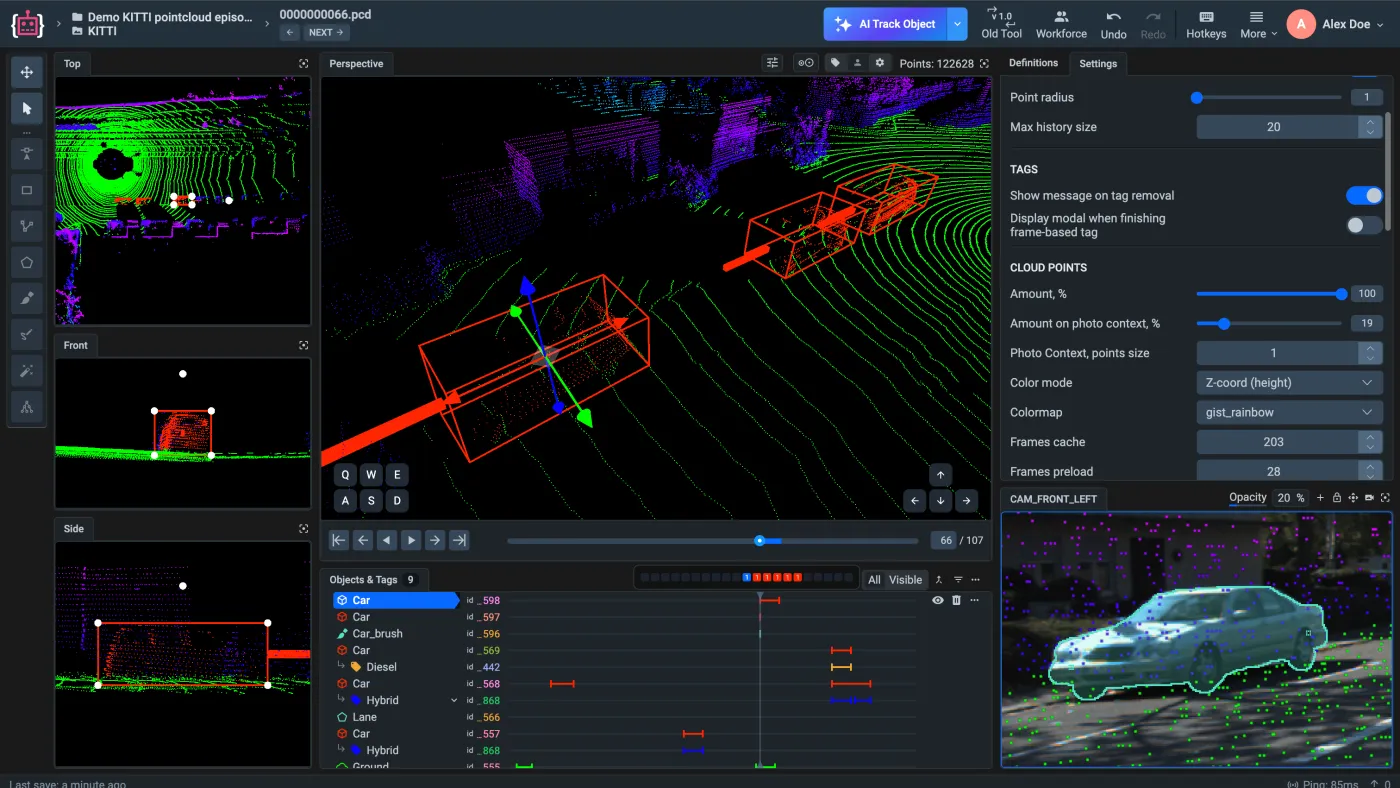
The tools sit on the keys 1 to 5: Move, Select, Cuboid, Point and the Point Cloud Pen. The Top, Side and Front views show the scene in projection next to the Perspective view, so a cuboid can be checked on every axis.

  1. Place a 3D cuboid on an object in the Perspective view, then refine its size and position in the Top, Side and Front views, which show it against the points from above, from the side and from the front.

  2. Segment points with one tool: clicks draw a polygon with straight edges, and click-and-drag paints like a brush. It creates new objects and adds or removes points of existing ones.

  3. Click points along a road or a building edge to read the X, Y and Z of each point, the length of every segment and the total length of the path.

The Supervisely 3D point cloud labeling tool with a selected car cuboid in the Perspective view and the same cuboid in the Top, Front and Side views

A layout you arrange

Move, dock and resize the views, camera images and panels to fit your screen and your task.

Classes and tags at hand

The Definitions panel holds classes, tags and tool settings, and changes the class of a selected object in one click.

Display settings per view

Point size for each view, colors by height, RGB, distance or camera, intensity mapping, cuboid thickness, object IDs and random object colors.

Keyboard and mouse

Fly through the Perspective view with the W, A, S, D, Q and E keys while the mouse rotates, pans and zooms. The Hotkeys button lists every shortcut.

A 3D AI assistant that works on any object, with no training.

The 3D AI assistant in Supervisely is class-agnostic: it handles objects of any shape and point density without fine-tuning on your data. Its tools sit in the Auto Labeling menu and the toolbar of the 3D toolbox.

  1. Turn on Highlight object by click, pick the Cuboid tool and click an object: the assistant finds its points and fits the cuboid around them. Press Space and click the next one.

  2. Circle an object, and the model predicts a 3D cuboid for it. Inspired by Segment Anything, it detects objects in any environment, including ones it has never seen.

  3. One click finds the ground and saves it as a flat figure of a ground class. Pick Patchwork++, GndNet, quantile filtering, ground plane fitting or grid-based slope filtering, and preview each on your data.

  4. Track the selected object, or every object on screen, for a set number of frames forward, backward or both. Point cloud registration aligns neighboring scans, so tracking needs no training.

Bring your own models as well: serve MMDetection3D detectors such as CenterPoint, PV-RCNN and PointPillars to pre-label whole projects, or train them on your point clouds.

Sensor fusion keeps the cameras and the point cloud in sync.

Camera images open beside the cloud, from one camera or a whole rig, with every 3D object projected onto them. A label drawn on an image belongs to the same object in 3D, and an edit in one view shows up in the other.

From 2D labels to 3D objects

Draw a box, polygon or brush mask on a camera image, or let the Smart Tool outline the object, then choose Create 3D Objects from 2D Objects on Camera: the 3D object appears in the cloud, with a 3D class linked to the 2D one.

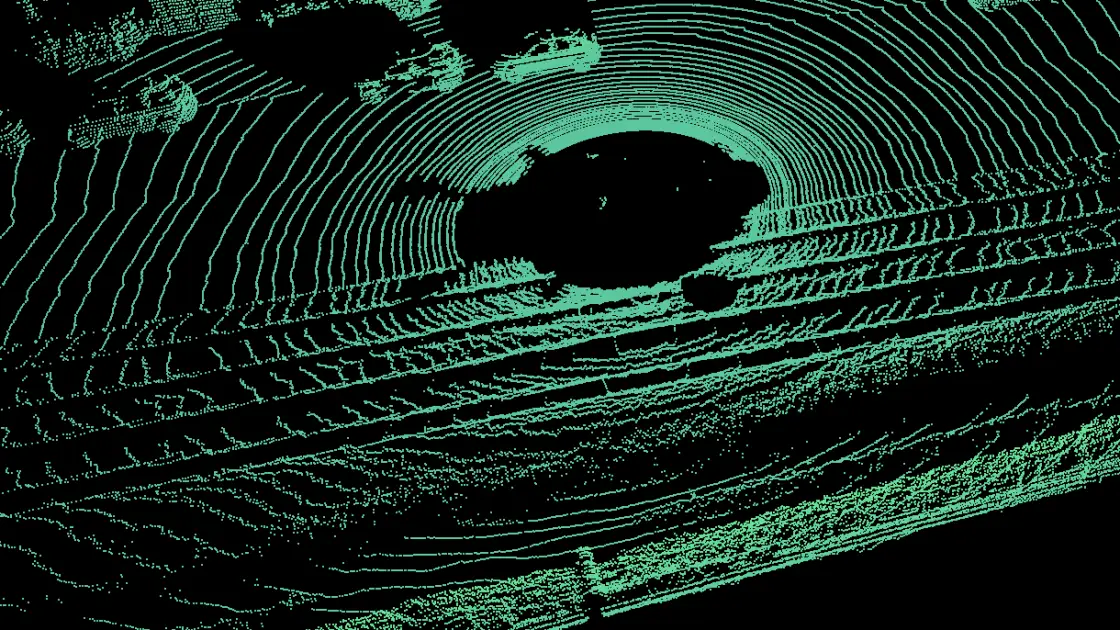
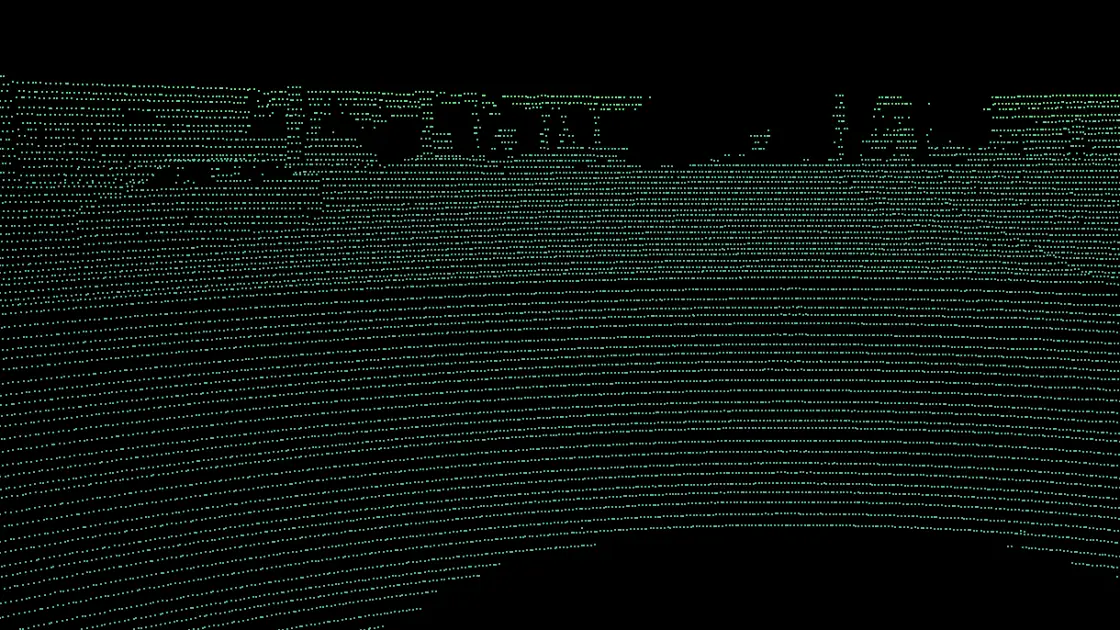
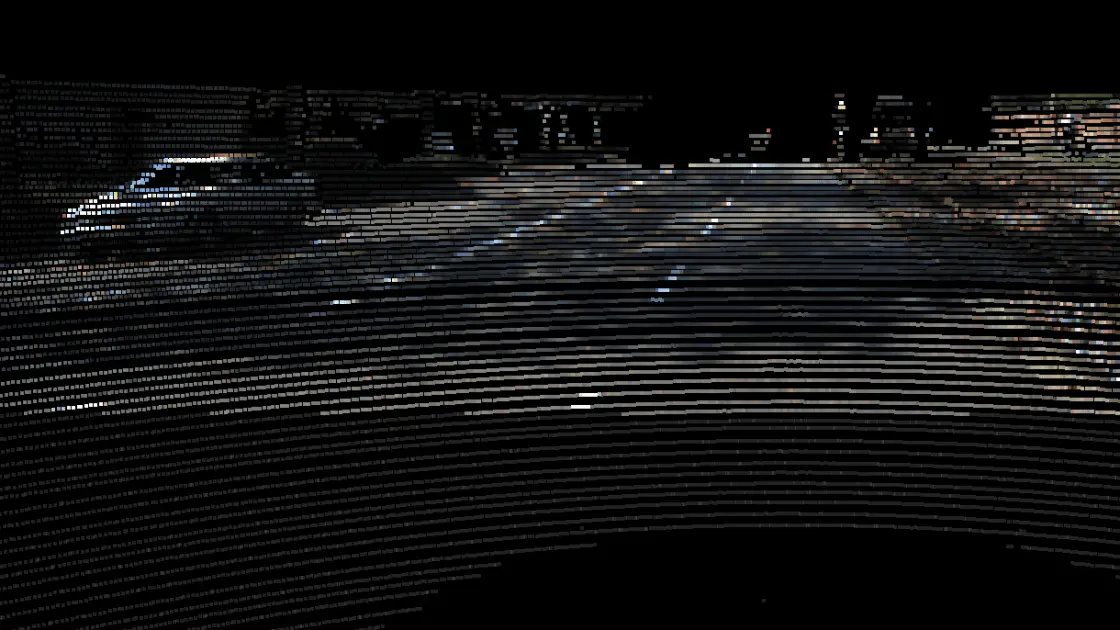
A street scan seen from above, then from the camera position, then colored with the colors of the camera image

The cloud through the camera

Match Camera Position moves the Perspective view to where the camera stood, and the Camera Device color mode paints the points with the colors of the photo, in every frame of an episode.

Episodes put a whole sequence on one timeline.

A point cloud episode plays like a video. The timeline moves through the frames and shows, for every object, where it appears and how densely it is labeled.

  • Timeline

    Play the sequence forward or backward, select ranges of frames, and see frame availability, object presence and annotation density at a glance.

  • Tracking and interpolation

    Hotkeys start tracking or interpolation for the selected figure, and copy or cut the visible figures to the clipboard to reuse them on other frames.

  • Object tags

    A tag describes an object in every frame as a global tag, or only in the current frame as a frame-based tag, with values you define.

  • Frames load ahead

    The toolbox preloads the next frames and keeps recent ones in a cache, with both sizes in the settings.

Labeling jobs and review work for point clouds too.

Split point cloud datasets between annotators and reviewers with the same labeling jobs as images and videos, and follow the progress on one dashboard.

Labeling jobs

Give each annotator a set of scenes with instructions and the classes and tags to use, then pass the finished job to a reviewer.

Review

Reviewers accept or reject each point cloud, and the Export Items After Review app exports only the accepted ones.

Labeling Performance

Counts accepted and rejected point clouds and episodes for every person, with labeling time and speed, for the team or for one job.

Import LiDAR datasets as they are, and export them in common formats.

Drop a folder or an archive into Auto Import: it detects the format, brings in the camera images and calibration where the format has them, and builds the project.

Import

Point clouds
  • PCD
  • PLY
  • LAS
  • LAZ
  • PCD with labels
  • KITTI 3D
  • nuScenes
  • Lyft
  • ROS bag
  • Supervisely JSON
Point cloud episodes
  • PCD
  • PLY
  • LAS
  • LAZ
  • KITTI-360
  • SemanticKITTI
  • nuScenes
  • Lyft
  • ROS bag
  • Supervisely JSON

LAS, LAZ and PLY load natively, with no conversion to PCD: intensity, return information, classification, RGB and custom fields stay, and compressed LAZ keeps uploads small.

Export

Point clouds and episodes
  • Supervisely JSON
  • KITTI 3D
  • nuScenes
  • SemanticKITTI
  • ROS bag

nuScenes archives open in the official nuScenes devkit, and ROS bag export keeps the 3D cuboids.

Here’s why teams trust us.

“Immensely grateful for their pivotal role in our work”

Working with Supervisely has significantly enhanced our capability to develop AI models for lung CT scans. What sets Supervisely apart is its exceptional support team who are really responsive and adapt to our unique needs with a range of apps and helper files.

University College Dublin

“Helps us to do data scientist work better and faster”

We use Supervisely since 2019. The key advantage of this tool is that Supervisely provides a complete data treatment pipeline. An important advantage is that a Supervisely instance can be deployed autonomously on a Client infrastructure, and distributed on different servers.

ENGIE

“A valuable part of our computer vision operations”

Supervisely is a valuable part of our computer vision operations, enabling our teams to efficiently work with camera and LiDAR data across sensor fusion projects. We use Supervisely for its extensive feature set and its ability to adapt to our changing requirements.

Renault Group

“Extremely satisfied with Supervisely and would highly recommend it”

The review tools have been invaluable in ensuring the quality and accuracy. The Python SDK has also been incredibly helpful in automating and streamlining our workflow. The support team on Slack has been extremely helpful and responsive.

EEVE

“Supervisely excels at that and much more”

We’ve been exceedingly impressed with the customer support, addition of new features, and the flexibility of the publicly available SDK/API. The Supervisely team has also been fast to respond to support questions, and has shown a lot of openness when given feedback on potential improvements.

Resson

Frequently asked questions.

What can I label in the Supervisely 3D point cloud tool?

LiDAR and RADAR point clouds, one frame at a time or as episodes, which are sequences of frames, together with the camera images of each frame. Objects get 3D cuboids, the Point Cloud Pen segments points, and boxes, polygons, brush masks and the Smart Tool work on the camera images. Tags describe an object in every frame or in one frame. See the 3D point cloud toolbox in the docs.

Which point cloud formats can I import and export?

Auto Import reads PCD, PLY, LAS and LAZ files natively, and annotated datasets in KITTI 3D, KITTI-360, SemanticKITTI, nuScenes, Lyft, ROS bag and Supervisely format. Export apps write Supervisely JSON, KITTI 3D, nuScenes, SemanticKITTI and ROS bags. See the supported point cloud formats.

How does sensor fusion annotation work in Supervisely?

Every frame carries its camera images with their calibration. The toolbox projects each 3D object onto the images, links a label drawn on an image to the same object in 3D, and turns a 2D box or mask into a 3D object with Create 3D Objects from 2D Objects on Camera. The Camera Device color mode also paints the points with the colors of the photos.

Does the 3D AI assistant need training on my data?

No. The assistant is class-agnostic: it fits cuboids, detects objects and segments the ground for any object without fine-tuning, and its cuboid tracking aligns neighboring scans with point cloud registration instead of a trained model. You can also serve your own 3D detectors, such as MMDetection3D models. See AI for 3D point clouds in the docs.

How large can a point cloud be?

The toolbox renders with WebGPU in the browser. In the docs benchmarks, 40 million points run at about 52 fps on a MacBook Air M4 and 100 million points at 115+ fps on a MacBook Pro (M4 Pro), and one scene holds up to 1,000 annotated objects. See performance for dense clouds.

Can I label point clouds for free?

Yes. The free Community plan includes the 3D toolbox with interactive photo context for up to 50 point cloud files. The 3D AI assistant, with cuboid adjustment, the 3D Smart Tool, ground segmentation and cuboid tracking, comes with the Cloud Max add-on for Pro (+€399) or with Enterprise, where tracking can also run your own models. Compare plans.