

Images
- The Smart Tool with Segment Anything 3, SAM 2.1 or HQ-SAM
- One SAM 3 box segments every similar object in the image
- Pre-labels from the Predict App, with your models or foundation models
- Live Training for boxes and masks, on Enterprise
AI-assisted labeling in Supervisely puts neural networks inside the labeling tools. The Smart Tool turns a box and a few clicks into a precise mask with Segment Anything 3, and deployed models pre-label whole projects, so people review labels instead of drawing each one.
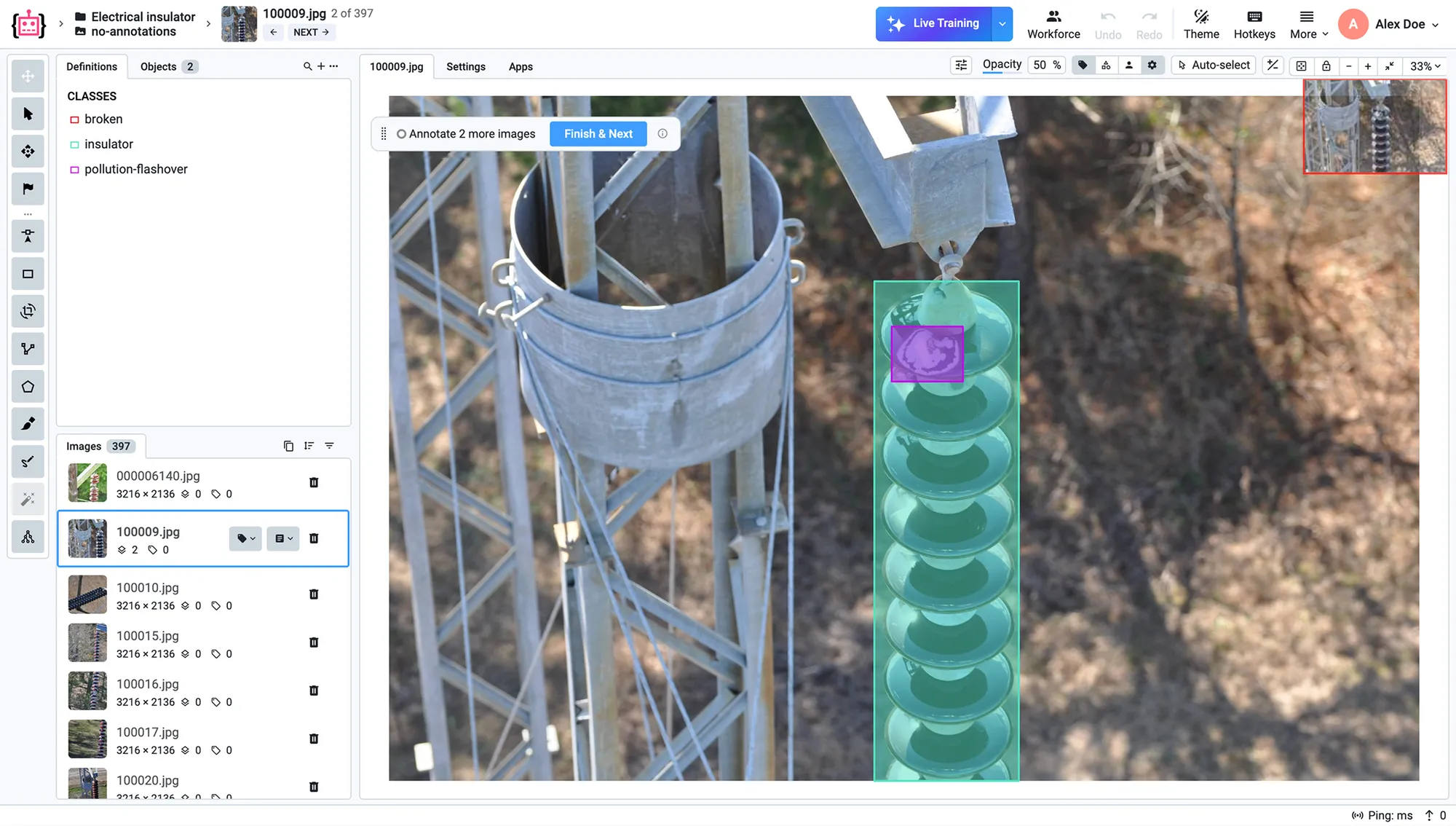
The Smart Tool is the interactive segmentation tool of the Supervisely image, video and DICOM labeling tools. It runs Segment Anything 3 or another interactive model and is class-agnostic: it outlines objects it was never trained on.
Box the object with about 10% of padding, and the model predicts its mask.
Click on parts the mask missed and Shift+click on parts it should leave out. Each point updates the mask.
The mask is saved as an object. Brush, Eraser and Pen fix the last details by hand.
With SAM 3, turn on reference bounding box prompts and box a single example: SAM 3 finds and segments every visually similar object in the image, from products on a shelf to cells under a microscope.
The model ID button in the toolbar switches between the interactive models running in your team: Segment Anything 3, SAM 2.1, HQ-SAM or a SAM 3 you fine-tuned.
Run the Serve Segment Anything 3 app on a GPU machine connected as an agent. On a private instance, administrators choose the models the Smart Tool offers.
Community teams get a Smart Tool that is already running, with 500 requests per day. Pro gets 5,000 requests per day with the Image Max add-on, and Enterprise has no limit.
Auto annotation in Supervisely runs through the Predict App: it applies a neural network to a project or dataset of images or videos, and annotators review and correct the predictions instead of starting from empty images.
Start the app from the Neural Networks menu of an images or videos project or dataset, or from the Ecosystem.
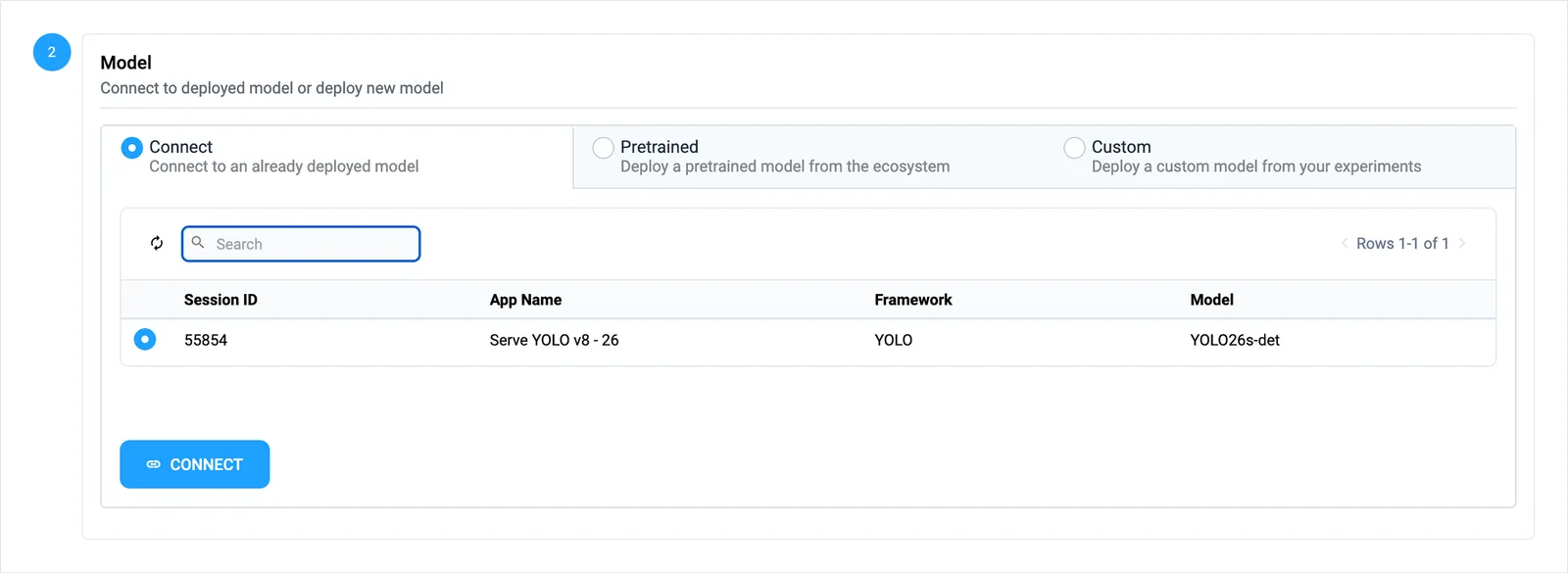
Connect to a model that is already running, deploy a pretrained model from the Ecosystem, or deploy one of your own from your experiments.
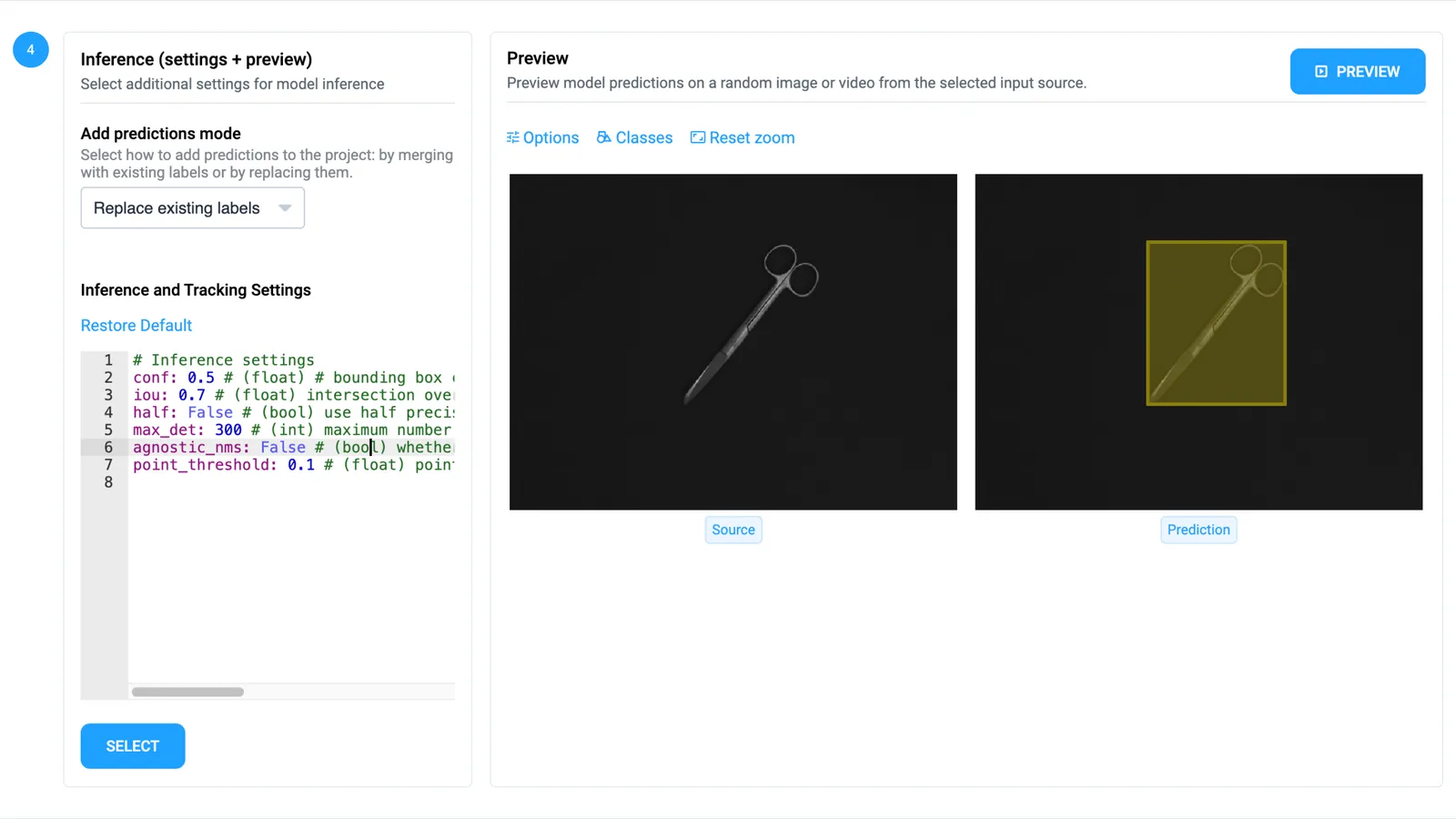
Keep the classes you need, set the confidence threshold and other inference settings, and preview the predictions on a random image or video.
Predictions go to a new project, or into the source project, merged with its labels or replacing them.
On videos, a detector labels every frame and the enhanced BoT-SORT tracker links its boxes into tracks with object IDs.
Foundation models such as SAM 3, Florence-2 and Grounding DINO detect objects you describe in a text prompt.
A detector can pass its boxes to Segment Anything for masks, to a pose model for keypoints or to a classifier for finer classes.
Pre-labeled data goes into labeling jobs like any other data: reviewers accept or reject every item, and the labels export to COCO, YOLO, Pascal VOC or your own format.
Masks on images, tracks in videos, cuboids in LiDAR point clouds and segmentations of DICOM volumes: each toolbox brings the models that fit its data.
Live Training fine-tunes an object detection or segmentation model in parallel with labeling. After the first few images, it pre-labels each new image, learns from your corrections and gets more accurate as you go.
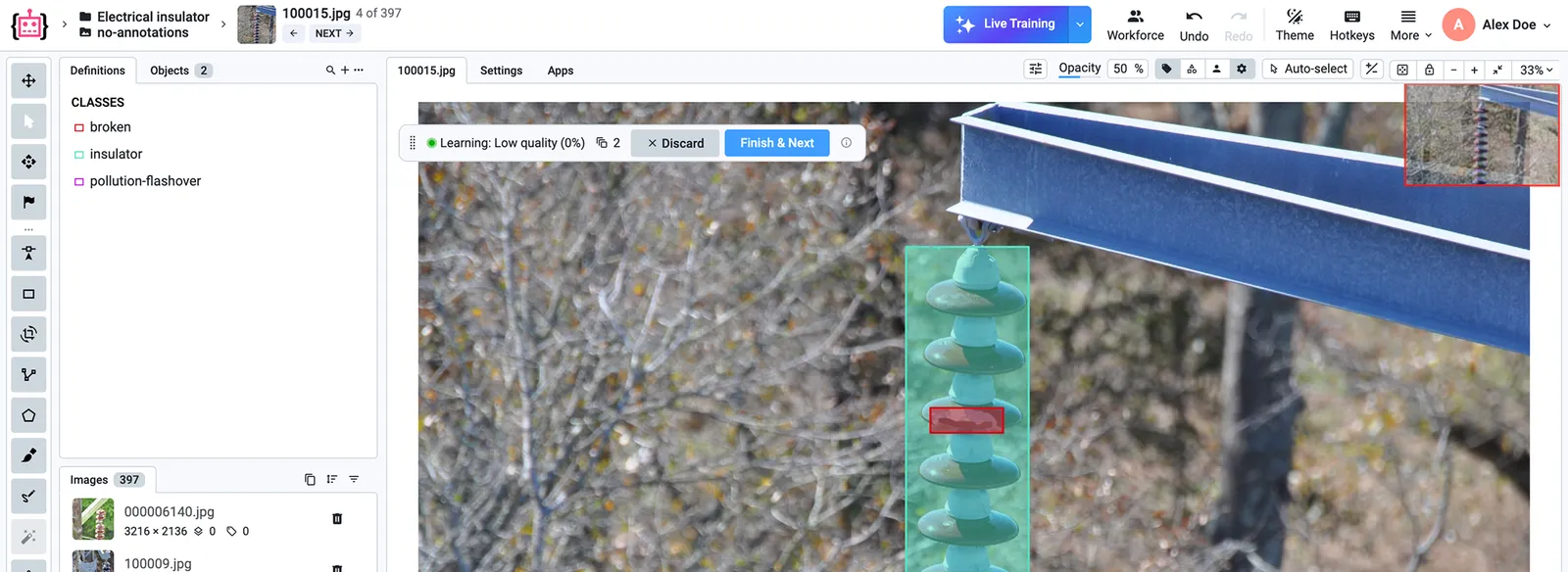
Click Auto Labeling in the top bar of the image labeling tool, choose Live Training and launch the app for the project.
Label an image as usual and press Finish & Next. After 2 to 5 images (5 to 10 for masks), the model starts to predict.
Every new image opens with the model’s labels. Fix them, or discard them and label by hand: the model learns from the result.
Live Training is part of the Enterprise edition, with one app for object detection and one for segmentation.
A model you train in Supervisely labels data too: deploy its checkpoint with a serving app or straight from the Predict App, and it pre-labels the next projects for your team.
Train YOLO v8 - 26, DEIMv2, RT-DETRv2 and other training apps learn from the projects you labeled, and every run is saved on the Experiments page.
Fine-tune SAM 3 on your objects with the Fine-tune Segment Anything 3 app, then serve the checkpoint and select it in the Smart Tool.
Wrap any model in the Inference class of the open-source Python SDK, and it works in the Predict App and the labeling tools. Custom model integration is part of Enterprise.
It is the set of AI tools built into the Supervisely labeling tools. The Smart Tool segments objects from a box and a few clicks with Segment Anything 3, the Predict App pre-labels whole projects with deployed models, Auto Tracking follows objects through videos, the 3D AI assistant places cuboids in point clouds, and Live Training learns from your labels as you work. People review and correct the results instead of drawing every label.
Run the Serve Segment Anything 3 app on a GPU machine connected as an agent. In the image labeling tool, select the Smart Tool, click the model ID button and choose SAM 3. Draw a box around the object with about 10% of padding, click to add areas or Shift+click to remove them, and press Space to save the mask. See the Smart Tool guide.
Yes. The Predict App applies a pretrained model, a model you trained in Supervisely or a model that is already running to a project or dataset of images or videos. You choose the classes, check a preview and save the predictions to a new project or to the source one. Read more about training and deploying models.
Yes, on every plan. Community teams get a Smart Tool that is already running, with 500 requests per day; Pro gets 5,000 requests per day with the Image Max add-on, and Enterprise has no limit. To run SAM 3 or another model on your own hardware, connect a GPU machine as an agent: the free plan connects one. Compare plans.
Yes. In videos, Auto Tracking follows boxes, masks and keypoints across frames and can start tracks for new objects. In 3D point clouds, the 3D AI assistant places and fits cuboids, segments the ground, tracks cuboids and turns labels drawn on camera images into 3D objects; it comes with Enterprise, and with Pro through its Cloud Max add-on. In DICOM volumes, the Smart Tool segments slices and the Volume Interpolation app fills in the slices between them.
Live Training trains an object detection or segmentation model while you label. After a few labeled images, it predicts labels for each new image and learns from every correction you make, and its checkpoints are saved on the Experiments page. Live Training is part of the Enterprise edition. See the Live Training quickstart.