

Filter, convert and augment
training data.
Supervisely's query and transform tools get labeled data ready for training: find images by class, tag or text prompt, convert formats and shapes, split train and validation sets, and augment data in ML Pipelines.
Filter a dataset by class, tag or text prompt.
The data view of every image project has filters, AI Search and collections. Find the images you need, then copy, move, label or train on them without leaving the project.
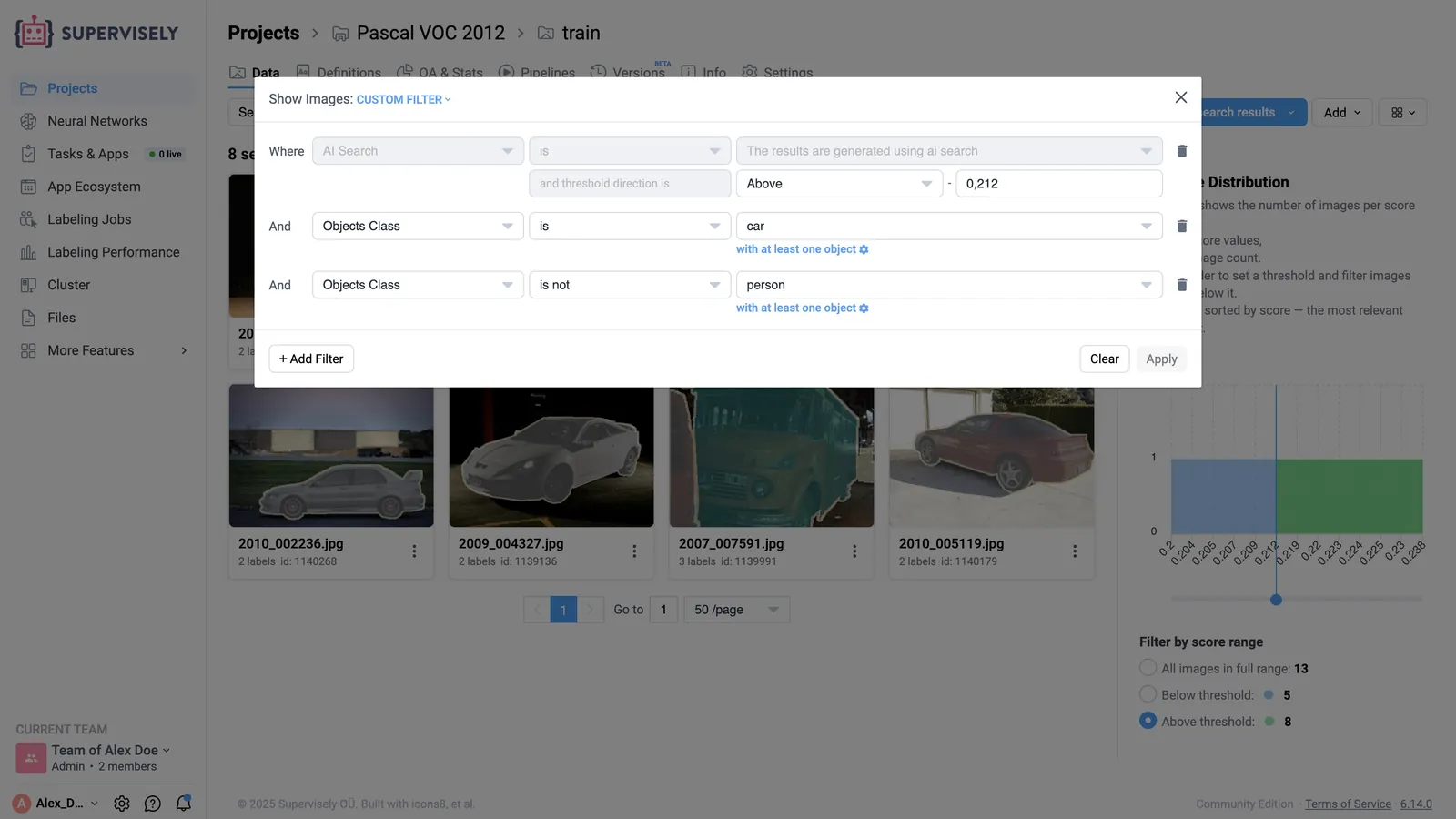
Conditional filters
Combine conditions: object classes with a count range, image and object tags, authors, labeling job status and open issues. Presets show unlabeled images, images with issues or images labeled by you in one click.
How to use advanced filtersAI Search
Describe what you need, such as “a person riding a bicycle”, and get images ranked by similarity, with a score chart to set the threshold. Diverse search returns a representative sample, and AI Search Similar finds images like the ones you pick. On Pro and Enterprise.
How AI Search worksCollections
Save any selection as a collection: a named list of items from any datasets of the project that copies no data. Label it directly, feed a labeling queue from it, or use collections as train and validation splits.
Working with collectionsConvert annotation formats and shapes.
Bring datasets in from the formats you have, keep one format inside the platform, and take data out in the format your model trains on.
Import from common formats
Auto Import recognizes COCO, YOLO, Pascal VOC, Cityscapes, LabelMe, Label Studio and images with PNG masks, point clouds in KITTI 3D, nuScenes or Lyft format, and DICOM, NRRD or NIfTI volumes, and converts them to the Supervisely format.
Export the format you train with
Download a project as COCO, Pascal VOC, DOTA, YOLO for segmentation or pose, or segmentation masks with an export app from the project menu, or as Supervisely JSON, which keeps every annotation.
Change shapes and classes
Turn polygons and masks into bounding boxes, boxes into polygons, masks into polygons and back, rasterize or skeletonize objects, and merge or rename classes in ML Pipelines.
Switch between videos and images
Turn a videos project into an images project, with every frame or only the annotated ones, or turn images into videos.
import supervisely as sly

api = sly.Api.from_env()
sly.Project.download(api, PROJECT_ID, "data")

# One project, three formats
sly.convert.project_to_coco("data", "coco")
sly.convert.project_to_pascal_voc("data", "voc")
sly.convert.project_to_yolo(
    "data", "yolo", task_type="detect"
)
The Python SDK converts a downloaded project to COCO, to YOLO for detection, segmentation or pose, and to Pascal VOC.
Split a dataset into train and validation sets.
Split once and reuse it, or let the training app split the data on the way in. Merging and reorganizing datasets is just as quick.
In the training app
Training apps for YOLO, RT-DETRv2 and DEIM ask for the split before training starts: random by percent, by train and val tags, by datasets or by collections.
With the Split Datasets app
Split by number of parts, item count, percent or a ratio such as 70:20:10, shuffled or in order, into the same project, a new one or an existing one. It works for images, videos, point clouds and DICOM volumes.
In a pipeline or in code
The Split Data node of ML Pipelines splits by percent, count, classes, tags or parts, and an If node routes images by probability. In Python, the SDK splits a project by count, tags, datasets or collections.
Merge and reorganize
Combine datasets from several projects into one in ML Pipelines, merge classes or tags, and copy or move items between projects and workspaces in Data Commander, a dual-pane data manager.
Augment images and labels in a visual pipeline.
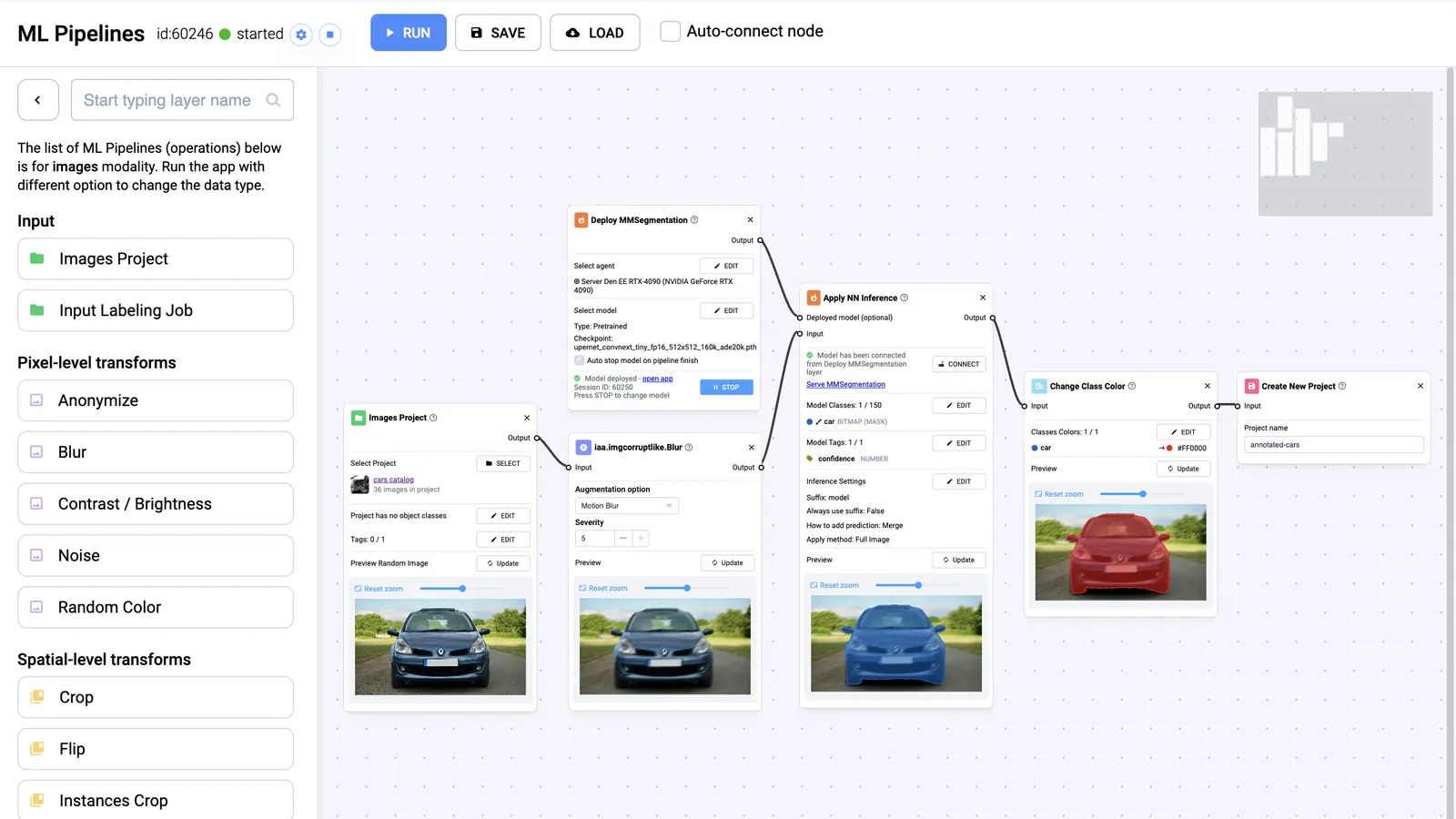
ML Pipelines is a node editor for data augmentation and transformation: connect a project to transform nodes, preview each step on a random image, and save the result as a new project.
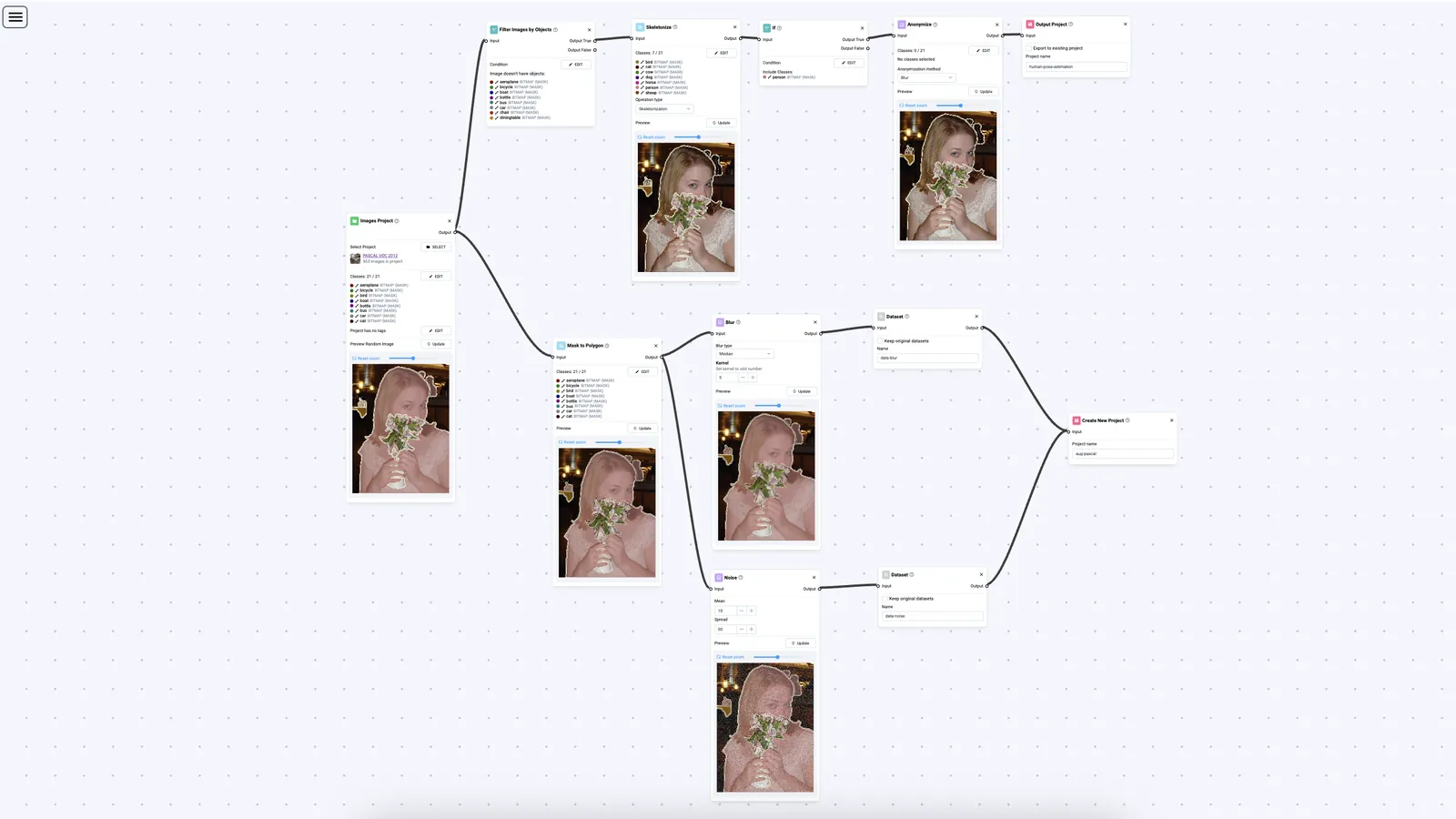
Pixel-level transforms
Blur, noise, contrast and brightness, random color, and anonymization that blurs or pixelates objects.
Spatial transforms
Crop, flip, rotate, resize and orientation, a sliding window over large images, and a crop of every object into its own image. Labels move with the pixels.
ImgAug augmenters
ImgAug Studio with more than 100 augmenters from the ImgAug library, plus ready nodes for noise, blur, weather, color, compression, elastic and perspective distortions.
Conditions
If nodes route images by probability, object count, image height, tags or classes, so an augmentation applies to a share of the data. Filter nodes keep images with or without given objects or tags.
Annotation transforms
Boxes from masks and polygons, polygons from masks, rasterized and skeletonized objects, small mask fragments dropped, and classes merged or renamed.
Models and outputs
Apply a deployed YOLO, RT-DETRv2, DEIM, MMDetection or MMSegmentation model inside the pipeline, then save to a new or existing project, an archive or a labeling job.
- Save a pipeline as a preset and load it for the next batch, or start one from the Pipelines tab of a project or from a filtered selection.
- Training apps also augment on the fly: YOLO sets flips, color shifts, scaling, mosaic and mixup in its hyperparameters, and DEIM sets mosaic and mixup.
Prepared data goes straight into training.
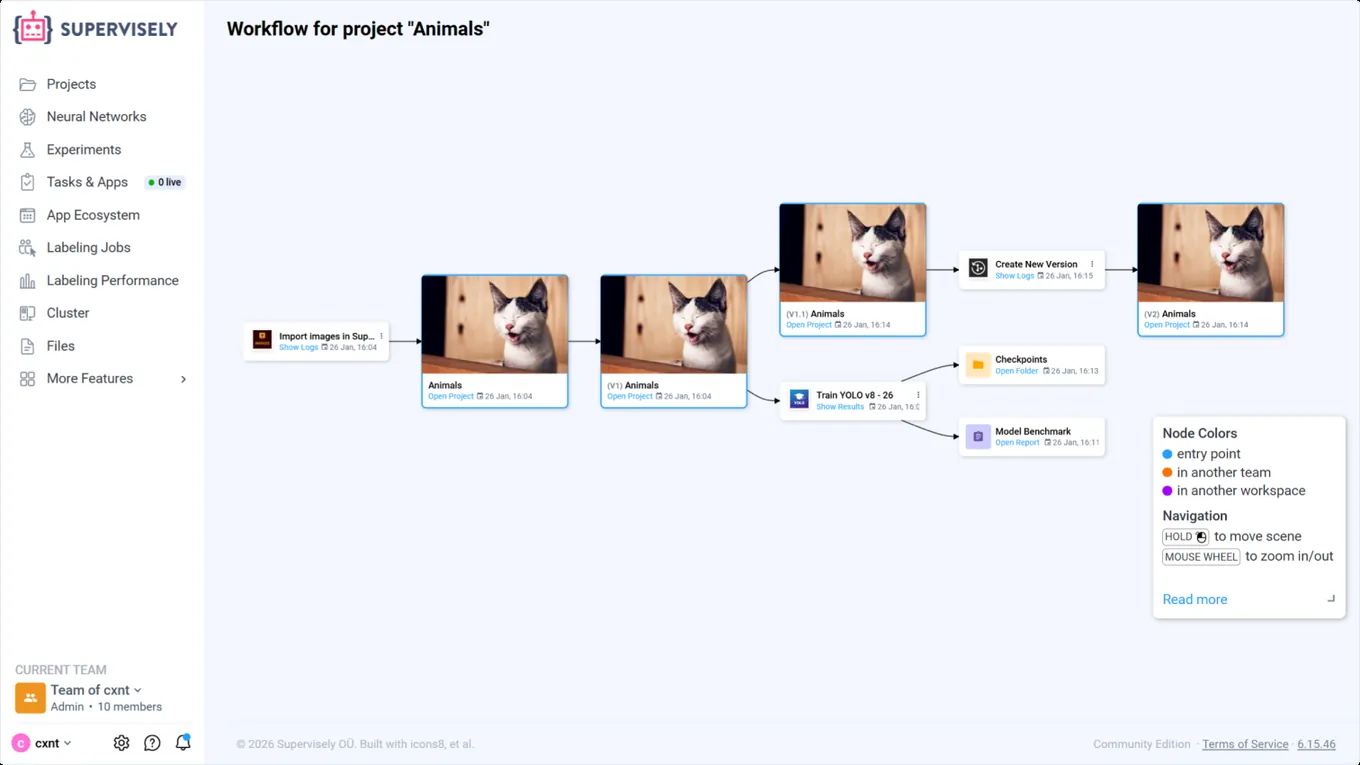
There is no export step between preparing data and training on it: training apps read the project, and the MLOps Workflow records every step from import to model.
-
Version the data
Save a version before a big change and restore any version as a new project. Training apps save one automatically before they train on an image project. Project versions are on Pro and Enterprise.
Project versions -
Train on the split you chose
Pick the split in the training app and train on your own GPUs. Checkpoints and the evaluation report appear on the same Workflow graph.
Train, serve and apply models -
Trace and improve
The Workflow graph links projects, versions, app sessions, checkpoints and reports, so you always know which data trained which model.
Evaluate and improve models
Here’s why teams trust us.
“A very high product quality.”
BMW Group uses Supervisely to annotate manufacturing images from production lines in their world-wide plants for enhancing quality inspections using deep learning. Supervisely is integrated into the BMW Group AI Platform in order to empower computer vision based AI use cases.
 BMW Group · Manufacturing quality inspection
“Immensely grateful for their pivotal role in our work”
Working with Supervisely has significantly enhanced our capability to develop AI models for lung CT scans. What sets Supervisely apart is its exceptional support team who are really responsive and adapt to our unique needs with a range of apps and helper files.

“Helps us to do data scientist work better and faster”
We use Supervisely since 2019. The key advantage of this tool is that Supervisely provides a complete data treatment pipeline. An important advantage is that a Supervisely instance can be deployed autonomously on a Client infrastructure, and distributed on different servers.

“A valuable part of our computer vision operations”
Supervisely is a valuable part of our computer vision operations, enabling our teams to efficiently work with camera and LiDAR data across sensor fusion projects. We use Supervisely for its extensive feature set and its ability to adapt to our changing requirements.

“Extremely satisfied with Supervisely and would highly recommend it”
The review tools have been invaluable in ensuring the quality and accuracy. The Python SDK has also been incredibly helpful in automating and streamlining our workflow. The support team on Slack has been extremely helpful and responsive.

“Supervisely excels at that and much more”
We’ve been exceedingly impressed with the customer support, addition of new features, and the flexibility of the publicly available SDK/API. The Supervisely team has also been fast to respond to support questions, and has shown a lot of openness when given feedback on potential improvements.

Your team next?
Talk to a computer vision engineer about your data, your models and your infrastructure.
Book a demoFrequently asked questions.
How do I filter a dataset by class in Supervisely?
Open the project, click Filters on its data view and add an Objects Class condition with the number of objects you need, for example at least one car. Add more conditions, such as tags, authors or labeling job status, and apply them. Then copy or move the results, add them to a collection or create a labeling job. See how to use advanced filters.
What is AI Search in Supervisely?
AI Search finds images in a project by meaning. It ranks images against a text prompt, picks a diverse sample without a prompt, or finds images similar to the ones you select. It runs on CLIP embeddings that stay inside your Supervisely environment, and it is available on Pro and Enterprise. Read the AI Search guide.
How do I convert annotations to COCO, YOLO or Pascal VOC?
Auto Import reads COCO, YOLO, Pascal VOC and other common formats and converts them to the Supervisely format on upload. To get data out, download the project with an export app from its menu, such as Export to COCO, Export to Pascal VOC or Export to YOLOv8 format for segmentation and pose, or convert a downloaded project in Python with sly.convert.project_to_coco, project_to_yolo (detection, segmentation or pose) or project_to_pascal_voc.
How do I split a dataset into train and validation sets?
Training apps for YOLO, RT-DETRv2 and DEIM ask for the split before training: random by percent, by train and val tags, by datasets or by collections. For a fixed split, run the Split Datasets app with a ratio such as 80:20, or add a Split Data node to an ML Pipeline.
How does data augmentation work in Supervisely?
Build a pipeline in ML Pipelines from augmentation nodes such as crop, flip, rotate, blur, noise, color and more than 100 ImgAug augmenters, preview every step on a random image, and save the augmented images with their labels as a new project. Training apps for YOLO and DEIM also augment on the fly with settings in their hyperparameters. When augmentation is not enough, generate synthetic data.
Do these operations change my original data?
ML Pipelines saves its result to a new project or to an existing one you choose, and apps such as Resize images and Split Datasets write new projects or datasets. To keep a restorable copy of any state, create a project version first. Project versions are available on Pro and Enterprise.