

Video annotation tool
for hours-long videos.

The Supervisely video annotation tool lets you label hours-long videos in the browser without cutting them into frames. Draw boxes, masks and keypoints, track objects with AI and tag events on one timeline.

Label the video itself, not a folder of frames.

Upload a video and start labeling. The player handles footage hours long and steps through it frame by frame, so every label sits on the exact frame a model will learn from.

24 fps × 60 s × 60 min = 86,400 frames

At 24 frames per second, one hour of video holds 86,400 frames. Supervisely keeps them as one video instead of a folder of images.

  • No conversion

    Start labeling right after the upload. There are no frames to extract and no image sequences to keep in order.

  • A real video player

    Play forward or backward, step one frame or 10 frames at a time, and change the speed to review labels quickly.

  • One ID per object

    An object keeps one ID in every frame where it appears, so tracks never need IDs matched by hand.

  • Every frame as recorded

    Labels and tags stay on the frames of the original file, with none skipped, so a model trains on what annotators saw.

Formats
.mp4, .mov, .avi, .mkv, .webm, .wmv, .flv and .3gp. MP4 with H.264, VP8 or VP9 streams to the browser as it is; other formats are transcoded to MP4 on the fly, which is slower.
Length
No fixed limit. On the first upload, Supervisely maps every frame number to its timestamp, so a longer video takes longer to import.
File size
Up to 64 GB per upload by default. On your own instance, the limit can be changed in the settings.
Resolution
No fixed limit. Full HD (1920×1080) suits computers with hardware video decoding, HD (1280×720) computers without a GPU or slow networks.

On Enterprise installations, a CDN such as Amazon CloudFront can deliver videos to annotators far from the server.

Video annotation tools for boxes, masks, polygons and keypoints.

The video toolbox has the drawing tools of the image toolbox, built for frames in motion. Click a class in the Definitions panel and its tool is selected, ready to draw.

  • Box an object or click on it, and an AI model such as Segment Anything 3 draws its mask. Positive and negative clicks refine it.

  • Boxes for object detection. Rotated boxes fit tilted and elongated objects, such as cars seen from above.

  • Outlines of irregular and complex shapes, point by point.

  • Paint, erase and outline pixel masks for video segmentation.

  • Skeletons drawn from a keypoint template, for pose estimation.

  • Single points for small objects and landmarks.

  • Connected lines along lanes, edges and other linear objects.

Smart Tool, shown on one frame. The same tools work on every frame of a video.

Quick actions

A small panel next to the selected object moves it or deletes it, for example from the current frame to the end, without a trip across the screen.

Merge objects

Join two objects into one when the same object was labeled twice.

Hotkeys

Shortcuts for tools, playback and tracking, with the full list one click away in the top bar.

Display settings

Opacity, borders, random colors per object, brightness and contrast for dark footage, and a light or dark theme.

AI object tracking turns one labeled frame into a track.

Label an object, press Track, and a tracking model follows it through the next frames. You review the result and fix only the frames where it drifts.

The Tracking menu on a dashcam video with GPS telemetry: a car boxed on two keyframes, then Interpolate until next real frame fills in every frame between them.
  • Track a number of frames

    Track the selected objects any number of frames forward or backward, from the Tracking menu or with Shift+T.

  • Auto track

    Re-tracks an object when you change its label, and extends the track as you reach its last frames.

  • Detect off-screen

    Stops tracking an object when it leaves the scene and removes it from the frames that follow.

  • Tracking by detection

    Finds new objects as they enter the scene and starts tracking them, for crowded streets and busy scenes.

  • Interpolation

    Fills the frames between two keyframes from the shapes alone, with no neural network, for steady and predictable motion. It works for boxes, rotated boxes, masks, polygons, lines and points.

A model for every shape

The Tracking Engine setting chooses the model. Auto Track, the default, picks a suitable tracker for each shape: boxes and rotated boxes, masks, polygons, polylines, points and keypoint skeletons. Masks can also be tracked by segmentation models such as Segment Anything 3 and Segment Anything 2.1.

Pre-label whole videos

The Predict App runs a detector such as YOLO or RT-DETRv2 on every frame of a video project, and the BoT-SORT tracker, improved with OSNet re-identification, links its boxes into tracks with IDs.

On the Supervisely Cloud, trackers are already deployed for every user. Free accounts get a limited number of tracking requests; Pro and Enterprise raise the limits and run Auto Track on your own GPUs.

Every object and tag of the video on one timeline.

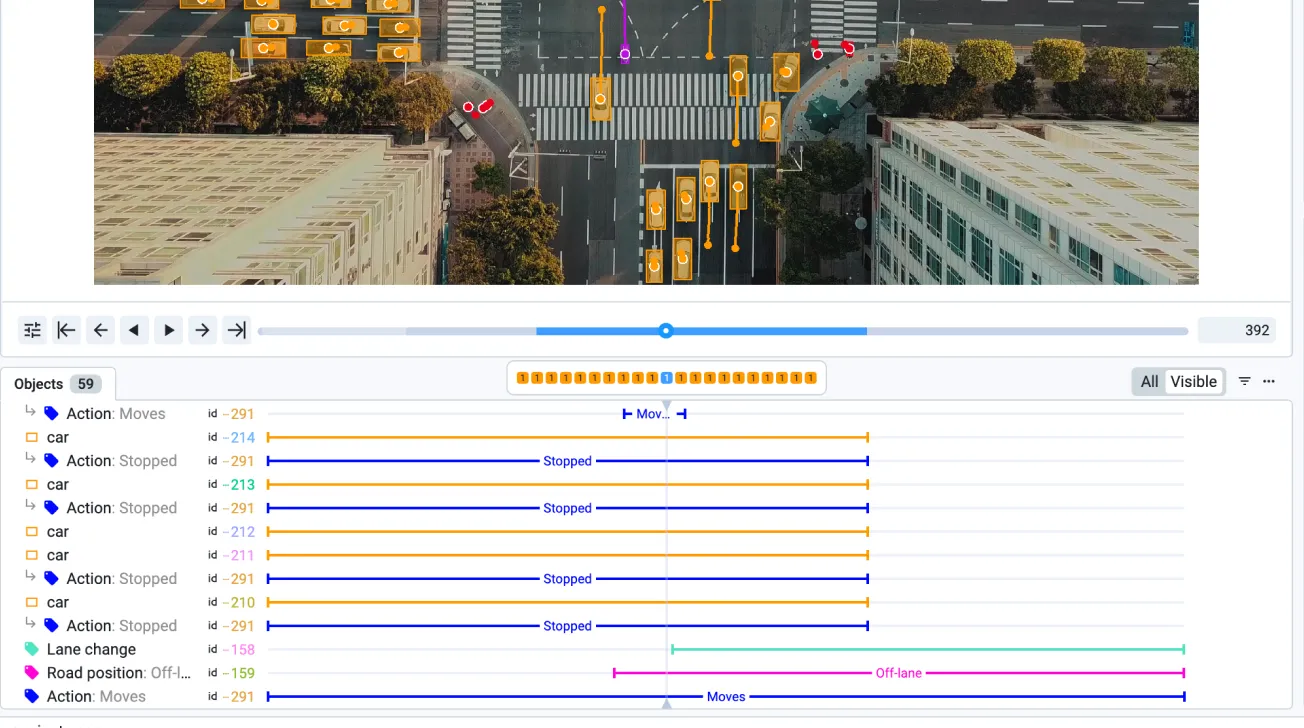
The Objects & Tags panel shows the whole video at once: when each object appears, which frames carry which tags, and where labels are still missing. Click a bar to jump to its frames, or drag the edges of a tag to change its range.

The Objects & Tags timeline of the Supervisely video annotation tool under the video player: tracked cars, Action tags with the values Stopped and Moves, a Lane change tag and a Road position tag set to Off-lane
Each object and each tag gets its own row; a new tag value starts a new segment of the range.
  • Tags on frame ranges

    Check a frame-based tag where an event starts and uncheck it where it ends. A tag can cover one range or many, each with its own value.

  • Global tags

    Tag a whole video or a whole object, such as the weather or a car’s driving direction, and choose whether a tag applies to videos, objects or both.

  • Frame-exact ranges

    A small zoomed timeline shows the frames around the playhead, and the timeline zooms in up to 128x to set the exact first and last frame.

  • What is left to label

    The navigation bar marks the frames with objects or with tags, so stretches without labels stand out.

Trajectories show tracking mistakes

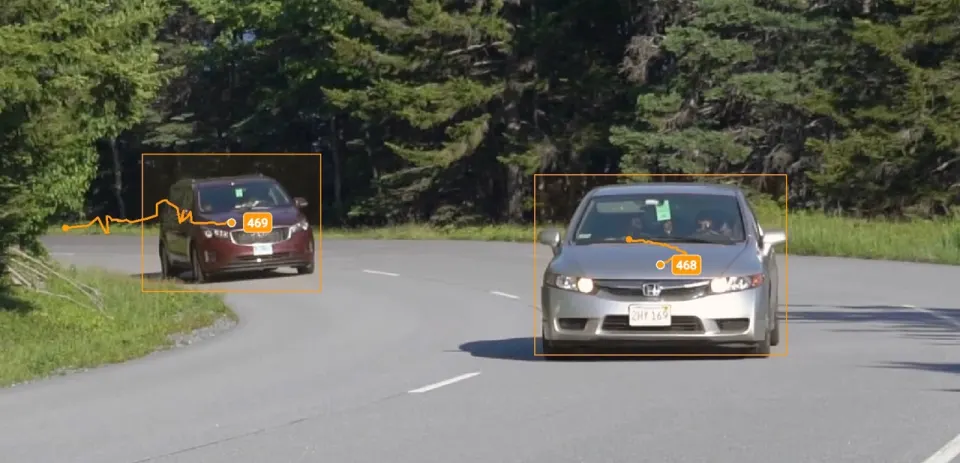
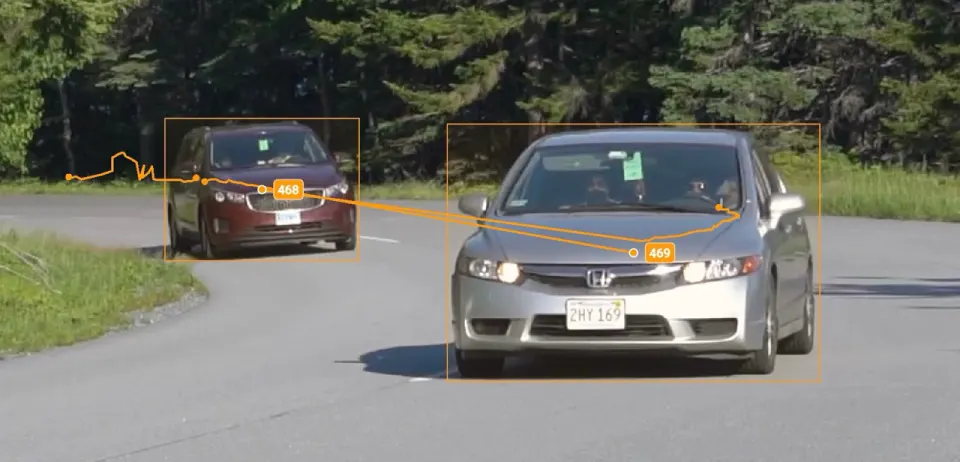
Turn on trajectories to draw the path of every object across frames. With a static camera, a track that jumps from one car to another stands out at once.

Trajectories of two tracked cars on a road, each following its own car
Each track follows its own car.
A trajectory that jumps from one car to the other, showing a tracking mistake
A track jumps to the other car.

Multi-camera video and GPS telemetry, in the same tool.

When one camera is not enough, the toolbox keeps more sources in sync with the footage: other cameras of the same scene, or the GPS route and the motion of the camera itself.

Multi-view video annotation

Videos of one scene from different cameras open together and play in sync. An object seen by several cameras is one object with one ID, and frame offsets align cameras that started at different moments.

  • Tags stay with the video they were set on, such as “occluded” on one camera
  • Auto Track follows an object in each view
  • Exports keep the shared objects and the order of the cameras

Suits autonomous driving, surveillance, sports and retail analytics, and 3D reconstruction.
Video + GPS Telemetry

For footage from a moving camera, the Map panel shows the GPS route and the Telemetry panel charts speed, acceleration and altitude, in sync with the video. Click a place on the route or a dip in speed, and the video opens that moment.

  • Reads the GPS track embedded in original GoPro recordings (GPMF) and in videos with CAMM metadata
  • Finds rare events by place and motion, such as stops, turns or a damaged stretch of road
  • Tag and label what you find without leaving the toolbox

Built for Physical AI datasets: autonomous vehicles, ADAS, robots, drones and road or railway inspection. On Enterprise installations, the Telemetry interface is enabled in the license.

Footage: the MAVREC dataset and “Driving in Marin County, CA Countryside” by HelloColby, Internet Archive, both CC BY 4.0, shown in recordings of the Supervisely interface.

Labeling jobs, review and consensus for video teams.

Hand videos out to annotators, review their work in the same toolbox, and settle disagreements before the labels reach a model.

  • Labeling jobs and queues

    Give each annotator a share of the videos with the classes and tags to use, or put the videos in a queue that hands the next one to whoever is free.

  • Review

    Reviewers accept or reject each submitted video in the toolbox, and rejected videos go back for relabeling.

  • Video consensus

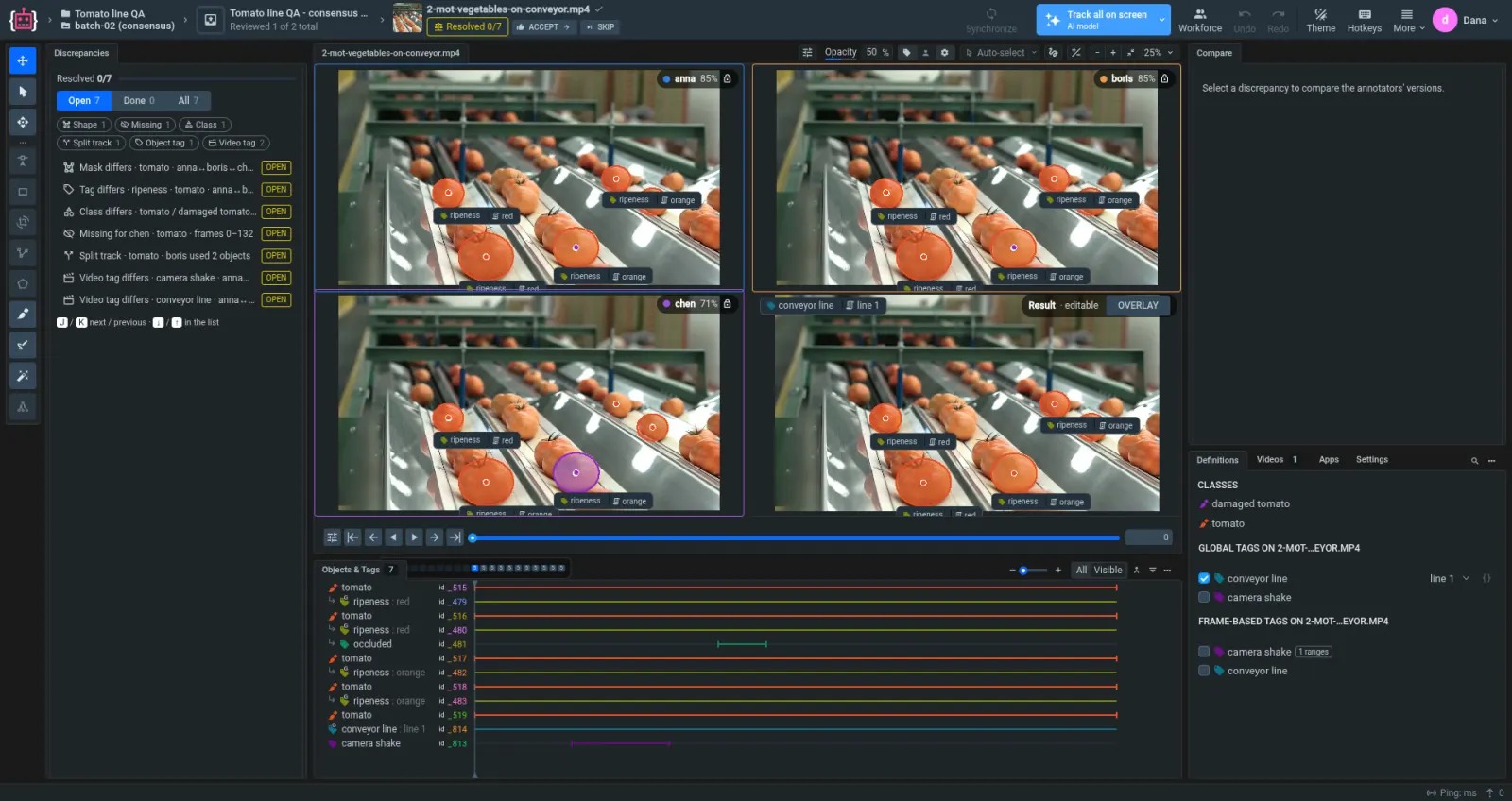
    In a consensus queue, on Pro and Enterprise, 2 to 4 annotators label each video independently. Supervisely matches their objects, frame ranges and tags, scores the agreement and pre-fills a result, and a reviewer settles every difference.

  • Exams and statistics

    Labeling exams test annotators on a labeled benchmark video, and the Labeling Performance page shows each person’s output, with a filter for video projects.

Video consensus review in Supervisely, dark theme: the versions of three annotators and the pre-filled result side by side, with a list of discrepancies such as a mask, a tag or a class that differs
Video consensus: three annotators’ versions and the pre-filled Result side by side, with every discrepancy listed on the left.

Import and export video annotations.

Bring in raw videos or videos with labels, and take every object, frame and tag back out in Supervisely format.

Import

Drag video files, folders or archives into Import Data, with or without annotations in Supervisely format. Multi-view groups keep their camera order through a small metadata file per video.

From the cloud or code

With Enterprise Edition, add videos from AWS S3, Google Cloud Storage or Azure. Scripts upload through the open-source Python SDK or the REST API.

Export

Download a project from its menu in Supervisely format: one JSON file per video with its objects, the shapes on every frame and the tags with their frame ranges, with or without the video files.

Other exports

Export only the labeled videos, send a project to cloud storage, or turn a video project into an images project to train image models.

Frequently asked questions.

Label your first videos on the free Community plan, or talk to the team about your project.

Can I annotate a video without splitting it into frames?

Yes. Supervisely opens the video file itself and steps through it frame by frame in the browser, so there are no frames to extract or upload. Each object keeps one ID in every frame where it appears, and tags can cover ranges of frames. See the video annotation tool guide.

Which video formats does Supervisely support?

Supervisely imports .mp4, .mov, .avi, .mkv, .webm, .wmv, .flv and .3gp files. MP4 with H.264, VP8 or VP9 streams to the browser as it is, and other formats are transcoded to MP4 on the fly, which is slower. A single upload can be up to 64 GB by default, and there is no fixed limit on length or resolution.

How does AI object tracking work in the video annotation tool?

Label an object on one frame, select it and press Track or Shift+T. The tracking engine, Auto Track by default, follows the object for the number of frames you set, forward or backward, with a model suited to its shape. In auto mode it re-tracks after every edit, extends the track as you move forward and can stop when the object leaves the scene. Read about Auto Tracking in the docs.

Can I segment objects in a video and track their masks?

Yes. Draw masks with the brush, the mask pen or the Smart Tool, then track them with a segmentation model such as Segment Anything 3 or Segment Anything 2.1, which Auto Track uses for masks. The AI-assisted labeling page covers these models.

How do I tag events on a range of frames?

Create a frame-based tag, go to the frame where the event starts and check the tag in the Definitions panel, then uncheck it where the event ends. The range appears on the Objects & Tags timeline, where you can drag its edges or change its value. See frame-based tagging.

Can I label videos from several cameras at once?

Yes. In a multi-view project, the videos in each dataset form a synchronized group: they play together, an object seen by several cameras keeps one ID, and frame offsets align cameras that started at different times. See multi-view videos in the docs.