

Data management
for computer vision.
Data management in Supervisely is how computer vision teams import, organize, search, version and export their datasets of images, videos, point clouds and DICOM volumes, all in one place.

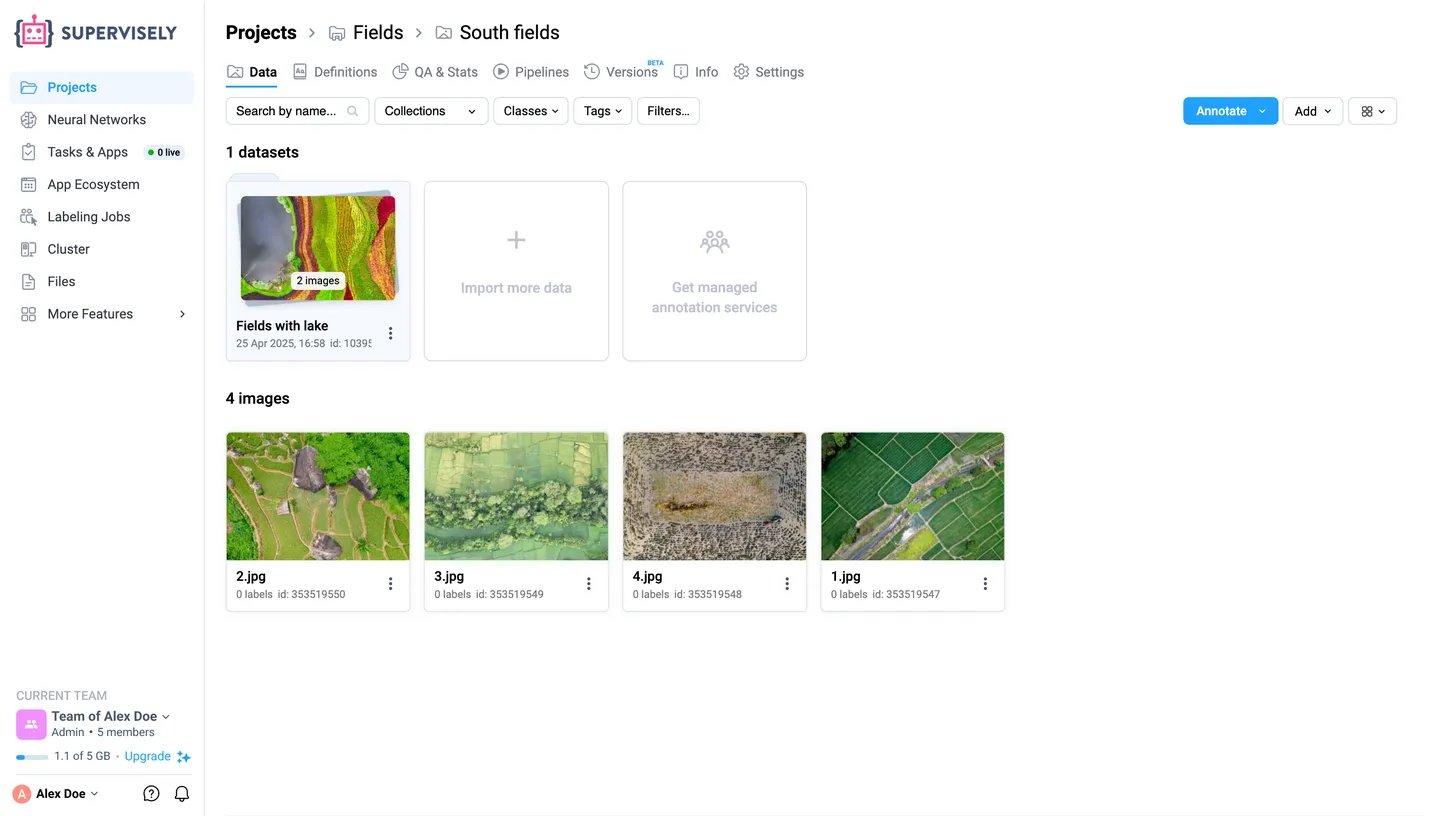
Dataset management that works like folders.
Teams hold workspaces, workspaces hold projects, and every project keeps its datasets together with the classes and tags of their annotations.
Teams and workspaces
Members of a team share its projects, models and files, each with a team role. Workspaces split the team’s projects into separate rooms, by client, task or stage.
Projects
A project holds one type of data, such as images, videos, point clouds or DICOM volumes, and the classes and tags its labels use.
Datasets and sub-datasets
Datasets keep the files and their annotations, and nest to any depth, so the folder tree of a disk or a bucket carries over as it is.
Collections
A collection gathers items from different datasets of a project without copying them, for review, re-labeling or a labeling queue.
Team Files
Model checkpoints, reports, exports and other files of the team live in Team Files, where apps read and write them.
Data Commander
A two-pane manager in the style of Total Commander shows over 30 columns of metadata and moves, copies or renames data between projects and workspaces.
Import COCO, YOLO and other formats as they are.
Drop files, folders or archives into Import Data. Supervisely detects the annotation format, checks the files and builds the project, and merges classes, tags and annotations when you add to an existing one.
| Data | Formats |
|---|---|
| Images | JPEG, PNG, TIFF, WebP, HEIC and other image files, with labels in Supervisely JSON, COCO, YOLO, Pascal VOC, Cityscapes, LabelMe, Label Studio or PNG masks; multispectral, multi-view and medical 2D images; PDF pages |
| Videos | .mp4, .avi, .mov, .mkv, .webm and other video files, with annotations in Supervisely format, and multi-view videos |
| Point clouds | PCD, PLY, LAS and LAZ files, PCD with semantic labels, KITTI 3D, nuScenes, Lyft and Supervisely format |
| Point cloud episodes | KITTI-360, SemanticKITTI, nuScenes, Lyft and Supervisely format |
| Medical volumes | DICOM and NRRD, NIfTI with segmentation masks, and Supervisely format |
| Meshes | PLY, STL and OBJ meshes in Supervisely format, and PLY with per-vertex labels |
From your computer
Drag and drop files, folders or archives into the browser.
From cloud storage
With Enterprise Edition, bring in data from AWS S3, Google Cloud Storage or Azure, as copies or as links.
From an agent or Team Files
Import from a machine that runs Supervisely Agent, or from files already in Team Files.
With code
Script uploads with the open-source Python SDK or the REST API.
Moving from Roboflow, Labelbox, V7 or CVAT
Migration apps connect to your old tool with its API key, copy the projects or datasets you select and convert their labels and tags. A results table links every source project to its new Supervisely project, and archives already exported from CVAT or V7 import directly.
Work with data in AWS S3, Google Cloud Storage or Azure.
Enterprise Edition connects Supervisely to the buckets you already have: leave files where they are and add them by link, copy them in, or keep the whole platform’s storage in your own bucket.
Add files by link
Point a dataset at files in your bucket or at any reachable URL. Supervisely stores the links instead of copies, so large datasets import almost instantly and the files load from where they are.
Or copy them in
Copy files from the bucket into Supervisely storage when the platform should serve them itself, for example videos that need smooth streaming.
Your bucket as storage
Keep every upload and generated file, from images to model weights, in Azure Blob Storage, Google Cloud Storage or any S3-compatible storage instead of the server’s disk.
One copy of each file
Uploads are matched by file hash, so a file the server already has is not stored again.
Disk usage
The Disk usage page lists the workspaces and projects of a team with their size and author, so you can see what takes up space.
Trash bin and cleanup
Deleted projects wait in the trash bin until someone restores them or deletes them forever, and an administrator confirms the final removal from the server.
Cloud storage connections, the Disk usage page and the server trash bin are part of Enterprise Edition, in the cloud or on your own servers.
Find the right images with AI Search and filters.
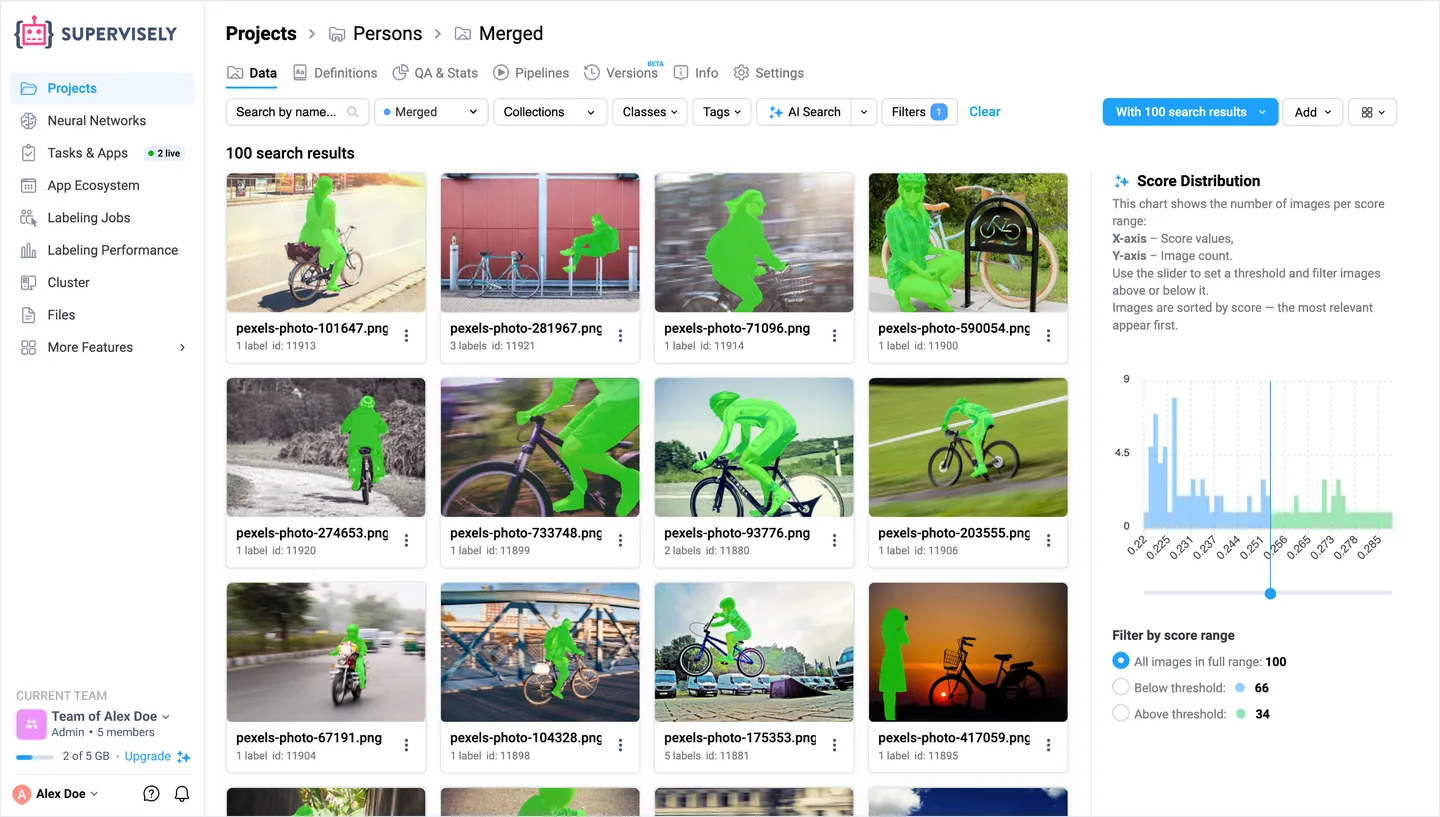
Describe what you need in plain words or start from an example image: AI Search ranks a whole project by meaning, and filters narrow the results by class, tag, author or labeling job.
-
Search by text or by image
Type a prompt such as “a person riding a bicycle”, or look for images similar to one or several selected ones. A score chart shows how close each result is, and a slider keeps the best matches.
-
Diverse samples
Diverse search returns a varied, representative sample of a project, with no prompt needed: a good start for review or the next labeling round.
-
Filters that combine
Filter by classes and object counts, image and object tags, authors, labeling jobs, issues or names with regular expressions, and stack the conditions.
Gallery and table views
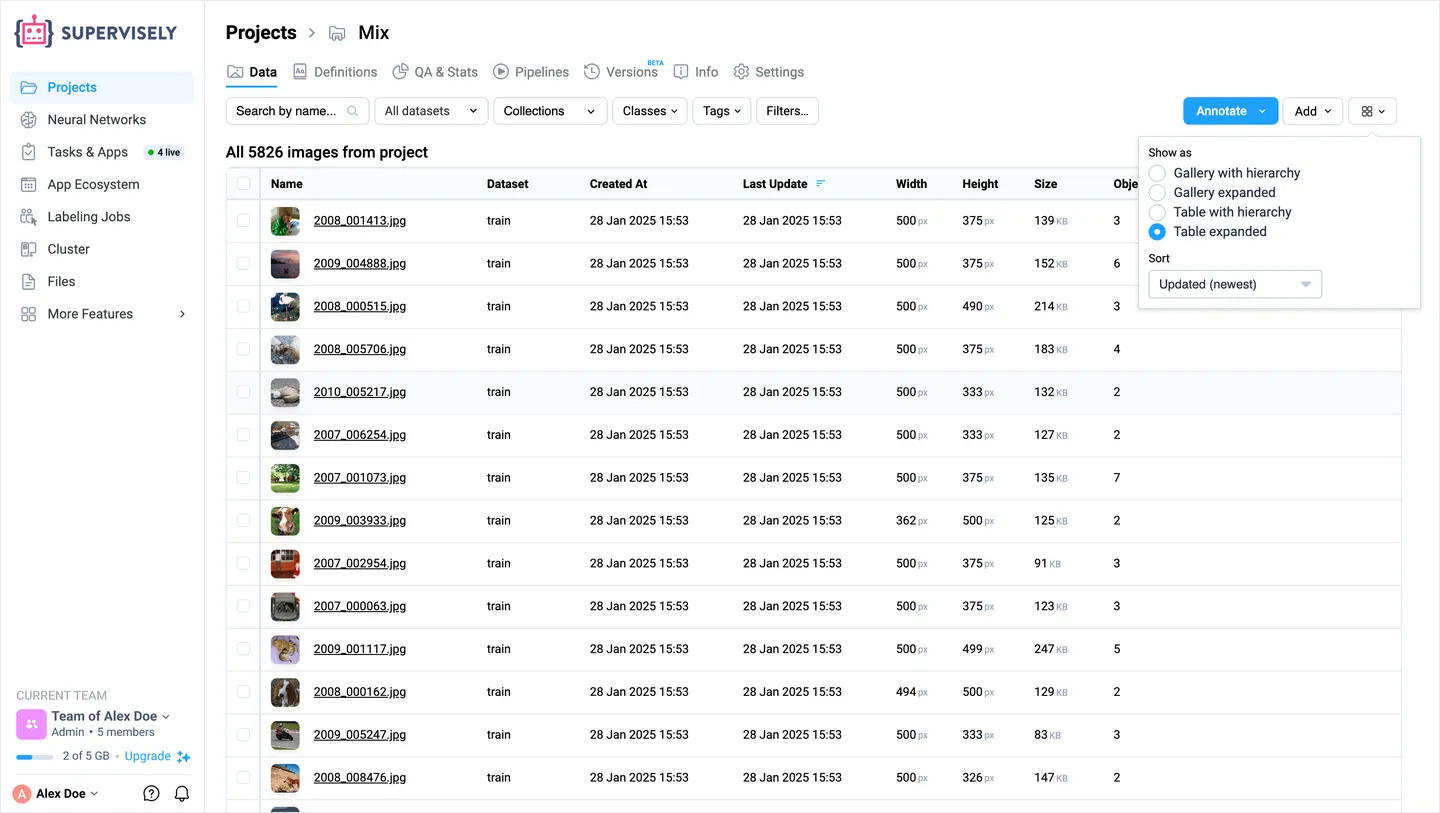
Browse thumbnails with or without the dataset hierarchy, or switch to a table with the dataset, dates, dimensions, size and number of objects of every file.
Statistics
The QA & Stats tab shows class balance, class co-occurrence, object sizes and where objects sit in the images. A click opens the matching images.
Act on the results
Copy, move or delete what you found, save it as a collection, or send it straight to a labeling job.
AI Search is available on Pro and Enterprise. It uses CLIP embeddings that are updated automatically and never leave your environment.
Dataset version control in every project.
Save the state of a project before it changes, look inside any version without restoring it, and get back the exact data a model was trained on.
Versions
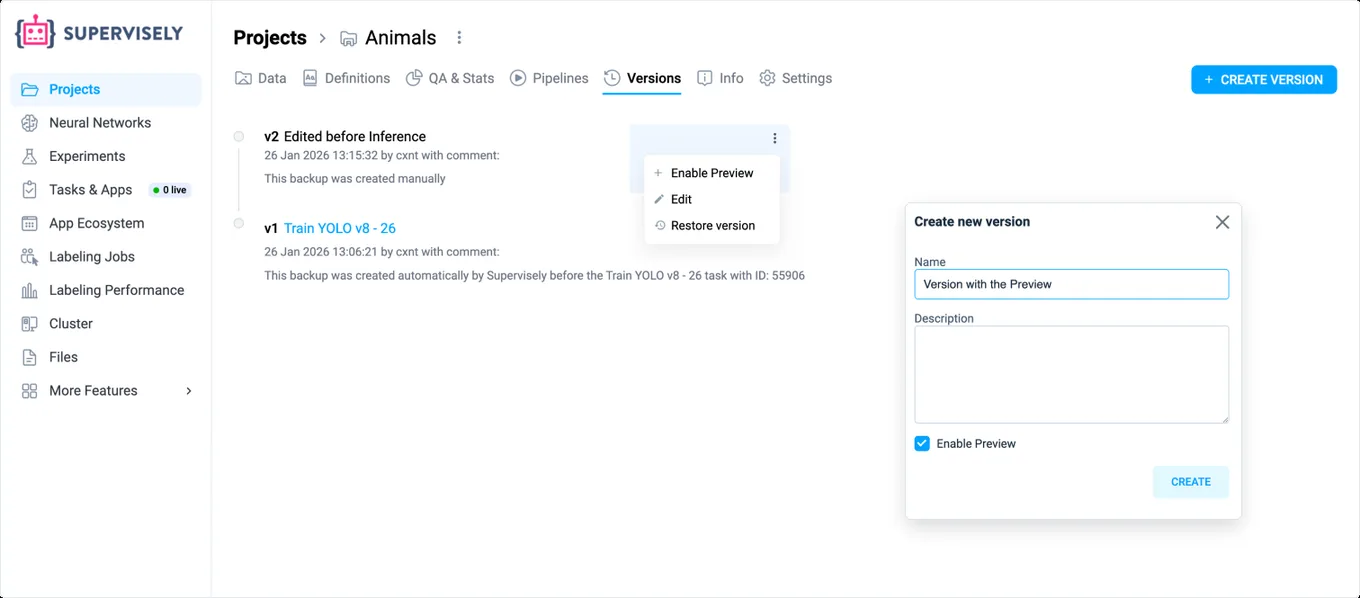
Create a version at any stage, from upload to augmentation, as a backup you can return to, with a title and a description you can edit later.
Instant previews
Open a version of an image or video project as a read-only preview, with the labeling toolbox, AI Search and filters, without restoring it.
Restore as a new project
Restore any version as a separate project and branch an experiment from the exact state you need.
Versions before training
Training apps save a version of an image project before they start, so you always know which data a model learned from.
MLOps Workflow
A graph shows how projects, versions, apps, checkpoints and evaluation reports connect.
Project Versions work with image, video and volume projects on Pro and Enterprise. Versions are stored in a compact binary format, and previews link media files instead of copying them.
Export to COCO, YOLO, Pascal VOC or your own format.
Download a project or a dataset from its menu in the format your training code expects, or keep everything in Supervisely format with nothing lost.
Supervisely format
JSON annotations that keep every class, tag and object of every type of data, with or without the images, videos or point clouds.
Popular formats
Export apps write COCO, COCO Keypoints, Pascal VOC, DOTA, YOLO for segmentation and pose, and segmentation masks for images, and KITTI 3D, nuScenes, SemanticKITTI and ROS bags for point clouds. The Python SDK also writes YOLO for detection.
Straight to cloud storage
Send an image or video project to AWS S3, Google Cloud Storage, Azure or any S3-compatible storage, with no archive to download.
Only what you need
Export only labeled items, only annotations, or the items accepted in a labeling job review.
Your own format
Convert the Supervisely format into whatever your pipeline reads with the open-source Python SDK, as in the example.
import supervisely as sly

api = sly.Api.from_env()

# Download a project in Supervisely format
sly.Project.download(api, PROJECT_ID, "./sly_project")

# Convert it for your training code
sly.convert.project_to_coco("./sly_project", "./coco")
sly.convert.project_to_yolo("./sly_project", "./yolo")
sly.convert.project_to_pascal_voc("./sly_project", "./voc")Frequently asked questions.
How is data organized in Supervisely?
Data lives in teams, which hold workspaces, which hold projects. A project keeps one type of data, such as images, videos, point clouds or DICOM volumes, with its classes and tags, and splits it into datasets that nest like folders. Collections group items across datasets without copying them, and Team Files keeps other files such as model checkpoints. See the data structure guide.
Which annotation formats can I import and export?
Import detects COCO, YOLO, Pascal VOC, Cityscapes, LabelMe, Label Studio and PNG masks for images; KITTI 3D, KITTI-360, SemanticKITTI, nuScenes and Lyft for point clouds; DICOM, NRRD and NIfTI for medical volumes; and Supervisely JSON for every type of data. Export apps write Supervisely JSON, COCO, Pascal VOC, DOTA, YOLO for segmentation and pose, and segmentation masks, among others, and the Python SDK converts a project to YOLO for detection. See the full list of supported formats.
Can I use data in AWS S3, Google Cloud Storage or Azure without uploading it?
Yes, with Enterprise Edition. Add files to a dataset by link and Supervisely stores only the links: the files stay in your bucket and load from it when someone opens them. You can also copy files into Supervisely, or keep all of the platform’s storage in your own bucket. See import from cloud storage.
How do I migrate from Roboflow, Labelbox, V7 or CVAT?
Run the migration app for your tool from the Ecosystem, connect it to your account and select the projects to copy. The app converts labels and tags and shows a table that links every source project to its new Supervisely project. Projects already exported from CVAT or V7 can be imported as archives. See the migration guides.
Does Supervisely have dataset version control?
Yes. Project Versions save the state of image, video and volume projects, open read-only previews of image and video versions, and restore any version as a new project. Training apps save a version of an image project before they start, and the MLOps Workflow graph shows which version each model used. Versions are available on Pro and Enterprise. See Project Versions.
How does AI Search find images?
AI Search computes a CLIP embedding for every image in a project and finds images by meaning: from a text prompt, from one or several example images, or as a diverse sample of the whole project. Embeddings update automatically and stay in your environment. AI Search is available on Pro and Enterprise. See how AI Search works.