

Image annotation tool
for boxes, polygons, masks and keypoints.
The Supervisely image annotation tool is a browser-based toolbox for labeling computer vision datasets. Draw bounding boxes, polygons, masks, polylines and keypoints by hand, or let the Smart Tool with Segment Anything 3 turn a box and a few clicks into a precise mask.
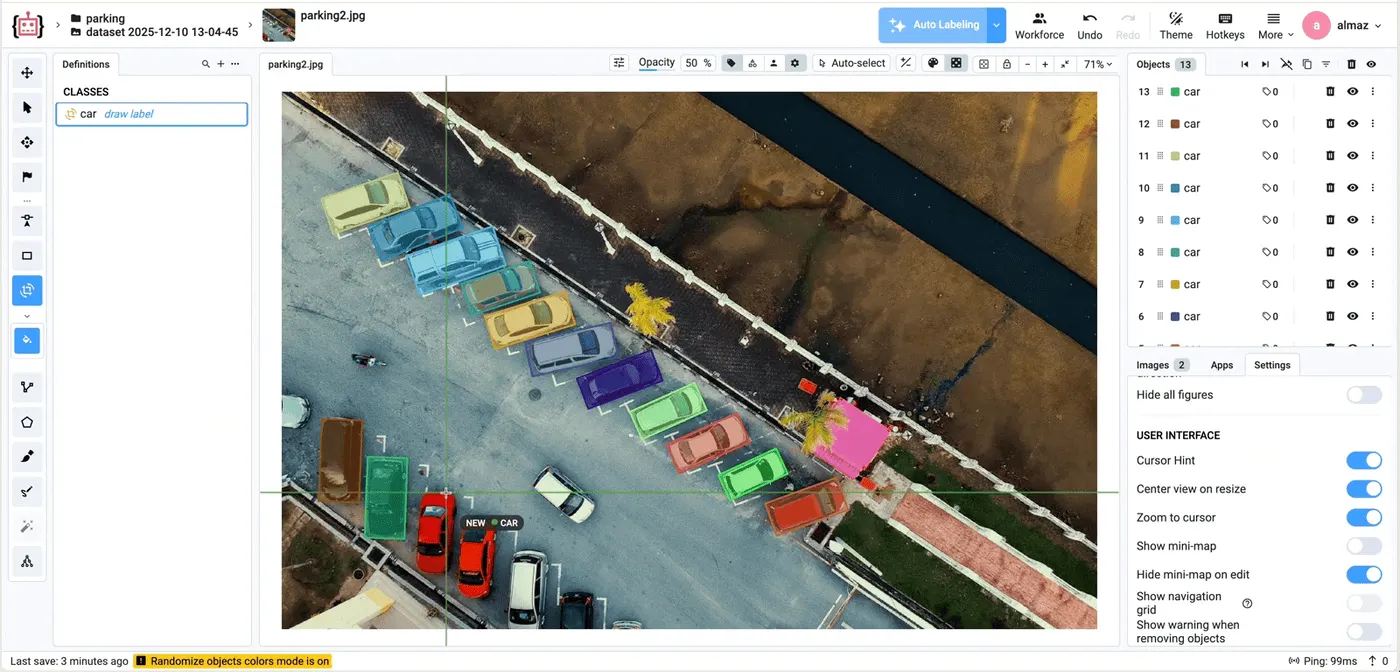
One labeling tool for photos, scans and multi-channel images.
Upload images in the formats your cameras and sensors write. When one picture is not enough, a labeling interface shows groups of views, channels or layers together.
Image files
JPEG, PNG, BMP, TIFF, WebP, MPO and JFIF, plus AVIF, HEIC and HEIF photos. Pages of a PDF import as separate images.
High color depth
16-bit TIFF and NRRD images open with windowing to adjust brightness and contrast. EXR and HDR files import as grayscale with the same controls.
Large, crowded images
High-resolution images with a minimap and a navigation grid, and 1000+ objects on a single image.
Groups, channels and layers
Multiview groups, multispectral channels, overlay layers, fisheye images and 2D medical images, each with a labeling interface of its own.
Labeling interfacesOne toolbox serves object detection, instance and semantic segmentation, image classification with tags and pose estimation.
Bounding box, polygon and mask tools for every annotation task.
Click a class in the Definitions panel and its tool opens, ready to draw. Each tool draws one kind of shape, from boxes for object detection to masks for segmentation and keypoint graphs for pose estimation.
- Object detection
Set two opposite corners to draw a box, and start the next one right away, without pressing Space. Drag an edge or a corner to fit it, or switch to Center Out mode to resize round objects from the middle.
- Rotated object detection
A box that turns with the object, for cars seen from above, ships or lines of text. Draw it with two clicks, then rotate it with its handle.
- Instance and semantic segmentation
Click around an object, or hold Shift and drag to lay points along a smooth edge. Click points on a neighbouring object's border and the new contour follows it, so touching objects join without gaps. Polygons can have holes.
- Pixel-accurate masks
Paint a mask freehand with a brush from 1 to 600 px, and hold Shift to erase. Bucket Fill closes holes with one click, separate parts can belong to one object, and new strokes can overlay, overwrite or preserve the masks already there.
- Precise masks
Click straight segments as with a polygon, or hold Shift and draw freehand, all in one mask. Add or cut away parts after the mask is closed, and split it into two objects with Polygon Split.
- Lanes, edges and contours
Connected lines for roads, lanes, rivers, wires and edges. Click to add points, click a segment to insert one, Shift-click a point to remove it, and press Space to finish.
- Landmarks and control points
Single points for joints, corners and control points. Place the next point right away, and drag any point to move it.
- Pose estimation
For keypoint annotation, define a skeleton of named nodes and edges once in the class, then place it point by point on each person or animal, and move, disable or remove single points.
- AI-assisted segmentation
Draw a box and an interactive segmentation model returns the object's mask. Positive and negative clicks correct it, Space saves it, and the brush, eraser and pen refine the edges.
Pan, Select and Drag tools, Auto-select on hover and a flag for issues complete the toolbar.
The Smart Tool segments any object from a box and a few clicks.
The Smart Tool runs interactive segmentation models inside the toolbox. It is class-agnostic, so it works on objects it was never trained for, and with Segment Anything 3 one box around an example finds and segments every similar object in the image.
-
Your choice of model
The model button switches between Segment Anything 3, SAM 2.1 and other interactive segmentation models deployed in your team, including ones trained on your own data.
-
Requests by plan
The Smart Tool handles 500 requests per day on the free Community plan, 5,000 on Pro with the Image Max add-on and an unlimited number on Enterprise.
-
Pre-labels from your models
Run a pretrained model or one you trained over a whole project before anyone starts, then correct its predictions in the toolbox.
-
Live Training
On Enterprise, Live Training starts from the Auto Labeling button: a model learns from your labels as you work and suggests labels after the first few images.
Multiview, multispectral and very large images open as they are.
Every images project has a labeling interface, chosen in its settings. Besides the default one, there are interfaces for groups of views, spectral channels, overlay layers, fisheye lenses, image matting and 2D medical images.
Multiview
Images grouped by a tag, such as the cameras of one scene, open side by side. Pan, zoom and object visibility stay in sync, and label groups link the same object across views.
Multispectral
The channels of one scene import as a group, or a multi-channel image splits into channels, and you label them side by side.
Overlay
Linked layers lie over a base image with adjustable opacity, for example microscopy channels or an elevation map over a satellite tile.
Fisheye
The camera calibration in the image metadata projects 3D cuboids and polygons onto the distorted image.
Image matting
Alpha masks keep the soft edges of hair, fur and other fine structures.
Medical 2D
X-rays, mammograms and other single DICOM, NRRD or NIfTI images, with windowing presets such as Lung or Mammary Gland. A DICOM tag such as StudyInstanceUID groups the images of one study into multi-view.
The Multiview, Multispectral, Fisheye, Image matting and Medical 2D interfaces and high color depth come with Enterprise, and with Pro through its Image Max add-on.
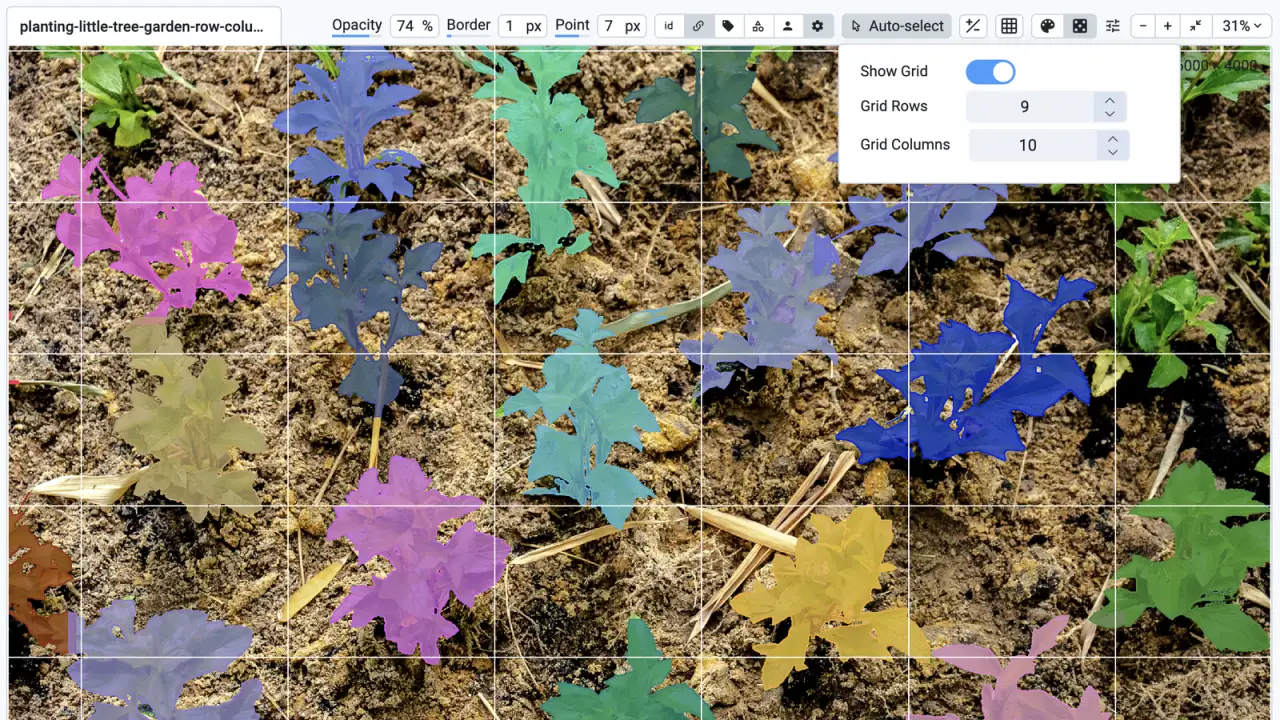
Large images with 1000+ objects stay easy to work through.
- A minimap shows where you are on a high-resolution image, and an N×M grid splits it into cells to label one by one.
- Hide or filter objects by class, tag, author or ID, and randomize colors to tell neighbouring objects of one class apart.
- Auto-select picks the object under the cursor, and opacity, border and point size sliders keep dense labels readable.
- Brightness and contrast settings help with dark or low-contrast images.
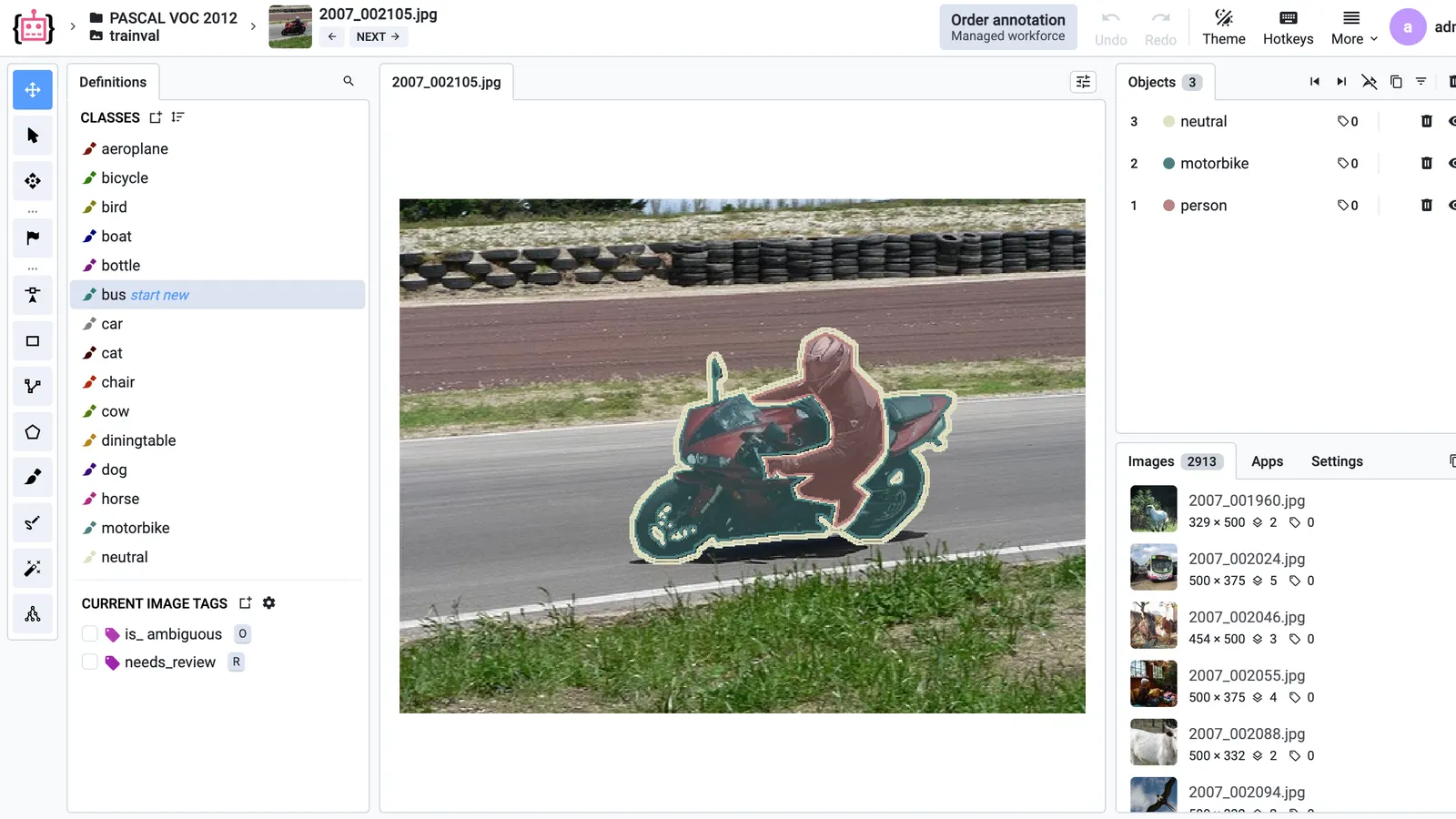
Classes and tags sit one click away in the Definitions panel.
The Definitions panel lists the project's classes and tags next to the image. Click a class to start labeling with its tool, and tick a tag to add it to the image or to the selected object.
Image and object tags
Tag a whole image, for example with the time of day, or one object with its attributes. Each tag applies to images, objects or both.
Typed values
A tag carries no value, text, a number or one value from a list, shown as a dropdown or as radio buttons for one-click choices.
Hotkeys and colors
Give classes and tags hotkeys and colors. Pressing a tag's hotkey again can remove the tag.
Search and reclassify
Search long lists of classes and tags, and move the selected object to another class of the same shape with one click.
Image metadata
View and edit the metadata of each image, from its size and format to fields of your own.
Hotkeys, panels and display settings adapt to the work.
Hotkeys
Every tool and action has a hotkey, listed in a searchable Hotkeys window, and classes and tags get hotkeys of their own.
Your own layout
Drag panels to new places and resize them; Restore default layout in the More menu puts them back.
Themes and full screen
Switch between light and dark themes, go full screen, or take a screenshot of the scene to share with the team.
Undo, redo and restore
Undo and redo any change, and restore mode brings back objects deleted earlier in the project.
Apps in the toolbox
The Apps panel opens Supervisely apps next to the image and extends the toolbox with tools and interfaces your team builds.
Custom labeling UIProject settings
Choose the labeling interface, hide tools a project does not use and make a project read-only.
Labeling jobs, review and issues run in the same toolbox.
Managers split images between annotators with labeling jobs and queues, and each annotator sees only the images, classes and tags their job allows.
Labeling jobs and queues
Give each annotator a share of a dataset, or let a queue hand out one image at a time.
User collaborationReview in the toolbox
Reviewers accept or reject each image with a click or a hotkey, and rejected work goes back for relabeling.
Annotation reviewIssues on any label
The flag tool opens an issue on an object, an image or a region, with a thread to discuss the fix.
IssuesQuality control
Send a random sample to QC, where reviewers judge the geometry, class and tags of every object.
Quality controlImport and export COCO, YOLO and Pascal VOC labels.
Drop a folder or an archive into Import Data and the annotation format is detected for you. Export apps and the Python SDK write the formats your training code reads.
Import
- Supervisely JSON, COCO, YOLO, Pascal VOC, Cityscapes, LabelMe, Label Studio and images with PNG masks
- Image links from CSV, TXT and TSV files, and PDF pages
- Multiview, multispectral, fisheye, high color depth and medical 2D images
- Roboflow, Labelbox, V7 and CVAT projects through migration apps
Export
- Supervisely JSON with every label, tag and metadata field
- COCO, YOLO and Pascal VOC for detection and segmentation, and YOLO for pose estimation
- DOTA for oriented boxes, and PNG masks for segmentation
- Only the labeled images, or only those accepted in review
# Download a project and convert it for trainingimport supervisely as slyapi = sly.Api.from_env()sly.Project.download(api, project_id, "./data")sly.convert.project_to_coco("./data", "./coco")sly.convert.project_to_yolo("./data", "./yolo")sly.convert.project_to_pascal_voc("./data", "./voc")Here’s why teams trust us.
“A very high product quality.”
BMW Group uses Supervisely to annotate manufacturing images from production lines in their world-wide plants for enhancing quality inspections using deep learning. Supervisely is integrated into the BMW Group AI Platform in order to empower computer vision based AI use cases.
 BMW Group · Manufacturing quality inspection
“Immensely grateful for their pivotal role in our work”
Working with Supervisely has significantly enhanced our capability to develop AI models for lung CT scans. What sets Supervisely apart is its exceptional support team who are really responsive and adapt to our unique needs with a range of apps and helper files.

“Helps us to do data scientist work better and faster”
We use Supervisely since 2019. The key advantage of this tool is that Supervisely provides a complete data treatment pipeline. An important advantage is that a Supervisely instance can be deployed autonomously on a Client infrastructure, and distributed on different servers.

“A valuable part of our computer vision operations”
Supervisely is a valuable part of our computer vision operations, enabling our teams to efficiently work with camera and LiDAR data across sensor fusion projects. We use Supervisely for its extensive feature set and its ability to adapt to our changing requirements.

“Extremely satisfied with Supervisely and would highly recommend it”
The review tools have been invaluable in ensuring the quality and accuracy. The Python SDK has also been incredibly helpful in automating and streamlining our workflow. The support team on Slack has been extremely helpful and responsive.

“Supervisely excels at that and much more”
We’ve been exceedingly impressed with the customer support, addition of new features, and the flexibility of the publicly available SDK/API. The Supervisely team has also been fast to respond to support questions, and has shown a lot of openness when given feedback on potential improvements.

Your team next?
Talk to a computer vision engineer about your data, your models and your infrastructure.
Book a demoFrequently asked questions.
What is the Supervisely image annotation tool?
It is a browser-based toolbox for labeling images for computer vision. It has tools for bounding boxes, oriented boxes, polygons, brush masks, polylines, points and keypoint graphs, the AI-assisted Smart Tool and tags for images and objects, so one project can serve object detection, instance and semantic segmentation, classification and pose estimation. See the Images toolbox in the docs.
Is the image annotation tool free?
Yes. The free Community plan includes the image labeling toolbox for 2 members, with 5 GB of storage, 10,000 files and 500 Smart Tool requests per day, and needs no credit card. Pro adds members, and its Image Max add-on adds 5,000 Smart Tool requests per day and multiview, multispectral, high color depth and medical 2D images. Compare plans.
Does the Smart Tool use Segment Anything (SAM 3)?
Yes. The Smart Tool runs interactive segmentation models such as Segment Anything 3 and SAM 2.1: draw a box, correct the mask with positive and negative clicks, and press Space to save it. With SAM 3, one box around an example segments every similar object in the image. Read more about AI-assisted labeling.
Which image formats can I upload?
JPEG, PNG, BMP, TIFF, WebP, MPO, JFIF, AVIF, HEIC and HEIF images; 16-bit TIFF and NRRD, EXR and HDR images with high color depth; DICOM, NRRD and NIfTI 2D slices; and PDF files, whose pages import as images. Labels import from Supervisely JSON, COCO, YOLO, Pascal VOC, Cityscapes, LabelMe, Label Studio and PNG masks. See the supported image formats.
Can I export annotations to COCO, YOLO or Pascal VOC?
Yes. Export apps save a project in Supervisely JSON, COCO, YOLO, Pascal VOC, DOTA or as PNG masks, and the Python SDK converts a downloaded project to COCO, YOLO or Pascal VOC. See export in the docs.
Can I label several related images at once?
Yes. In the Multiview interface, images grouped by a tag open side by side with pan, zoom and object visibility in sync, and label groups link the same object across views. Multispectral channels open side by side too, and the Overlay interface lays linked layers over a base image. Read the multi-view image annotation guide.