

Custom labeling UI,
built in Python.
A custom labeling UI in Supervisely is an annotation interface you build yourself in Python, from the ready-made widgets of App Engine. It runs inside Supervisely, as a panel in the labeling toolbox or as an app of its own, and works on your projects through the same API.
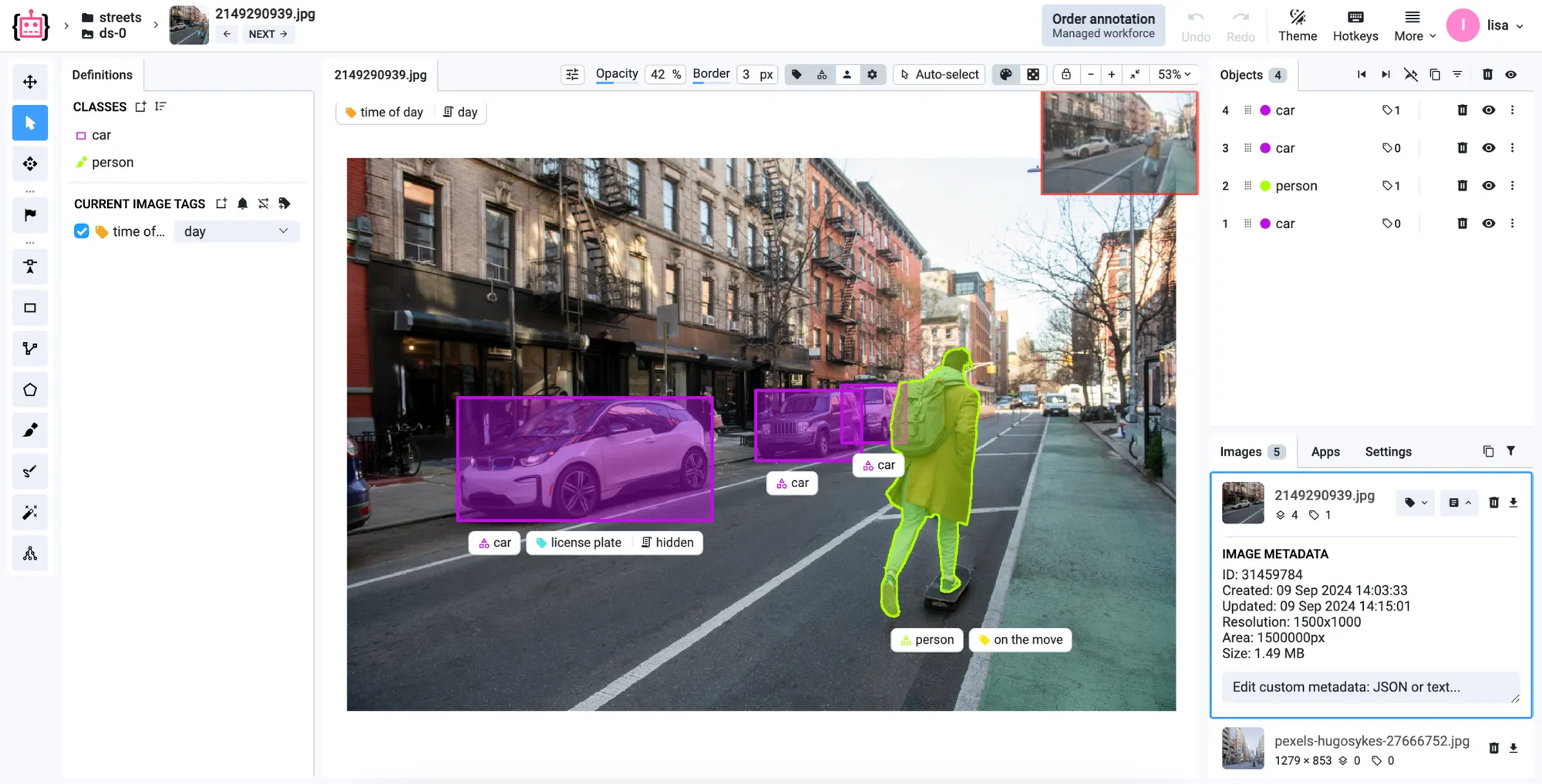
Build a custom annotation tool when no toolbox fits the task.
The image, video, 3D point cloud and DICOM toolboxes, with AI-assisted labeling built in, cover most annotation work. Teams build a labeling interface of their own when a task needs something else:
-
A simpler screen
Show new annotators only the controls their task needs, when people join the project every day.
-
Large catalogs
Give each object an ID from a catalog of thousands of products, with reference images and model suggestions beside it.
-
Your own rules
Check every label against your rules the moment it is drawn, or post-process a mask as soon as the brush stroke ends.
-
A different review
Replay the video segments picked by a combination of tags, or review the work with a report built for the task.
-
Unusual data
Label medical images in uncommon formats, or run one labeling pipeline fed by dozens of CCTV cameras at once.
-
Several teams
Pass the data from team to team, each labeling only its own classes or tags, with a review at every step.
Your Python runs inside the labeling toolbox.
Add integrated_into to the app's config.json, and the app opens in the Apps tab of the image or video labeling toolbox, next to the annotator's work. Its Python receives what happens in the toolbox and answers through the API.
-
A panel built from widgets
Switches, sliders, buttons, tables and image previews from the SDK widget library, laid out in Python, appear in the toolbox sidebar.
-
Toolbox events
A decorated function runs when a brush stroke ends, another object is selected or the next video opens. Each event carries its project, dataset, item, object and user.
-
The toolbox under control
Open an image or a video frame, select and zoom to an object, show a notification, or keep Confirm and Submit job off in the video toolbox until the labels pass your checks.
-
Debugging on a live session
Run the code from your IDE, linked to a real labeling session, then publish it with one command:
supervisely release.
Apps also run in labeling jobs and queues: a check can keep Submit job off until the labels pass, or reject an image in a labeling queue, as part of your quality assurance.
import cv2import numpy as npimport supervisely as slyfrom supervisely.app.widgets import Container, Field, Slider, Switch # The panel the annotator sees in the toolbox sidebarneed_processing = Switch(switched=True)dilation = Slider(value=10, min=1, max=50)layout = Container(widgets=[ Field(need_processing, "Process masks"), Field(dilation, "Dilation"),])app = sly.Application(layout=layout) # Runs every time a brush stroke ends in the toolbox@app.event(sly.Event.Brush.DrawLeftMouseReleased)def brush_released(api: sly.Api, event): if not need_processing.is_on() or event.is_erase: return meta = sly.ProjectMeta.from_json( api.project.get_meta(event.project_id) ) obj_class = meta.get_obj_class_by_id(event.object_class_id) mask = event.mask.astype(np.uint8) mask = cv2.dilate(mask, None, iterations=dilation.get_value()) label = sly.Label(sly.Bitmap(mask.astype(bool)), obj_class) api.annotation.update_label(event.label_id, label){ "type": "app", "version": "2.0.0", "name": "Labeling Tool template", "description": "Labeling Tool template", "docker_image": "supervisely/base-py-sdk", "categories": ["images", "labeling"], "task_location": "application_sessions", "headless": false, "entrypoint": "python -m uvicorn src.main:app --host 0.0.0.0 --port 8000", "integrated_into": ["image_annotation_tool"], "port": 8000}Three places a custom labeling UI can run.
Each is written in Python with the SDK widgets. Pick the one that fits the job.
-
A panel in the toolbox
A Python app that runs on an agent and opens in the Apps tab of the image or video labeling toolbox. In multi-user mode, one session serves the whole team, and each annotator's widgets keep their own state.
Example: Real-time Labeling Quality Check checks labels against rules while people work, then shows a notification, opens an issue with a report or rejects the image in a labeling queue.
Multi-user apps -
In the annotator's browser
An in-browser app runs its Python right in the browser, so no agent has to be started. It suits instant helpers, such as processing a mask the moment it is saved.
Examples: CLAHE Filter visualizer and Colormap Visualizer change how the image looks in the toolbox, in real time, without changing the source image.
Tutorial: an in-browser app -
An app of its own
A full page in Supervisely for work that does not fit the toolbox layout, built from the same widgets, including image galleries, video players, tables and annotation comparison.
Example: Multi-Team Labeling Workflow passes a dataset from team to team through labeling queues, each team labeling only its own classes or tags.
How App Engine works
Every app works on your Supervisely projects through the Python SDK and API, so labels stay in the Supervisely format with no conversion, and import and export work as for any other project in data management.
Frequently asked questions.
What is a custom labeling UI in Supervisely?
It is a data labeling interface you build for your own task in Python with App Engine, the framework behind the apps of the Supervisely Ecosystem. It can open as a panel in the image or video labeling toolbox, run in the annotator's browser, or work as an app with its own page, always on the same projects and labels as the standard toolboxes.
Do I need web development skills to build an annotation tool?
No. App Engine is made for Python developers and data scientists: you lay out the interface from ready-made widgets, such as buttons, sliders, tables and image galleries, and handle clicks and toolbox events in Python. If a widget is missing, you can add your own to the SDK. The widget reference lists them all.
How does an app get into the image or video labeling toolbox?
Add "integrated_into": ["image_annotation_tool"] or ["video_annotation_tool"] to the app's config.json. The app then appears in the Apps tab of that toolbox, opens in its sidebar and receives toolbox events, such as the end of a brush stroke or a change of video. The step-by-step tutorial builds a complete example.
Where does a custom app run?
A regular app runs in a Docker container on a Supervisely agent: your own GPU server, a cloud machine or a laptop connected to the platform. An in-browser app runs in the annotator's browser and needs no agent. While you develop, the code can run on your own computer, linked to a live labeling session.
Who can use a custom app I build?
A private app is available only on your own Supervisely instance, which comes with the Enterprise edition. To share it with a team, run it once in that team. Apps published to the public Ecosystem work in every edition, including the free Community edition. See how to add a private app.
Can a custom labeling UI use my own model?
Yes. An app can connect to a model deployed in Supervisely with api.nn.connect() and call predict() on the current image, for example to suggest a class for the selected object or to pre-label the image. Training and deploying models is covered in Train, serve and apply, and the ready-made AI tools of the standard toolboxes in AI-assisted labeling.