

Annotation quality control
built into every labeling job.
Quality assurance for data labeling in Supervisely checks labels before they reach a model: reviewers accept or reject work in labeling jobs and queues, consensus measures agreement between annotators, and exams, issues and statistics catch errors early.
Reviewers accept or reject every item before it ships.
Labeling jobs and queues have an annotation review step built in. When annotators submit their work, a reviewer goes through it in the labeling tool and accepts or rejects each item with a click or a hotkey.
-
Annotators submit
Labelers work through the items of their job in the labeling tool and submit it. The job moves from In progress to On review.
-
Reviewers decide
The reviewer accepts or rejects each item, and the Labeling Jobs page counts accepted and rejected items as the review goes.
-
Rejected work goes back
Restart a reviewed job, and its rejected items go back for relabeling in a new labeling job, to the same annotator or someone else. In a labeling queue, rejected items go straight back to the person who labeled them.
When the review is done, the Export Items After Review app exports only the accepted items of a job.
Manager
Creates jobs and queues, writes the instructions, assigns annotators and reviewers, and follows the statistics.
Annotator
Sees only the Labeling Jobs page, labels the assigned items and submits them for review.
Reviewer
Accepts or rejects the work and sends it back for relabeling. Can also create jobs and see statistics.
Quality control checks a random sample, object by object.
Send Sample to QC takes random images from an image project and splits them between one or more reviewers. They judge the geometry, class and tags of each object separately, so the annotator knows exactly what to fix.
-
Pick a sample
In the Annotate menu of an image project, choose Send Sample to QC, the reviewers and the sample size. The Quality Control task starts on review right away.
-
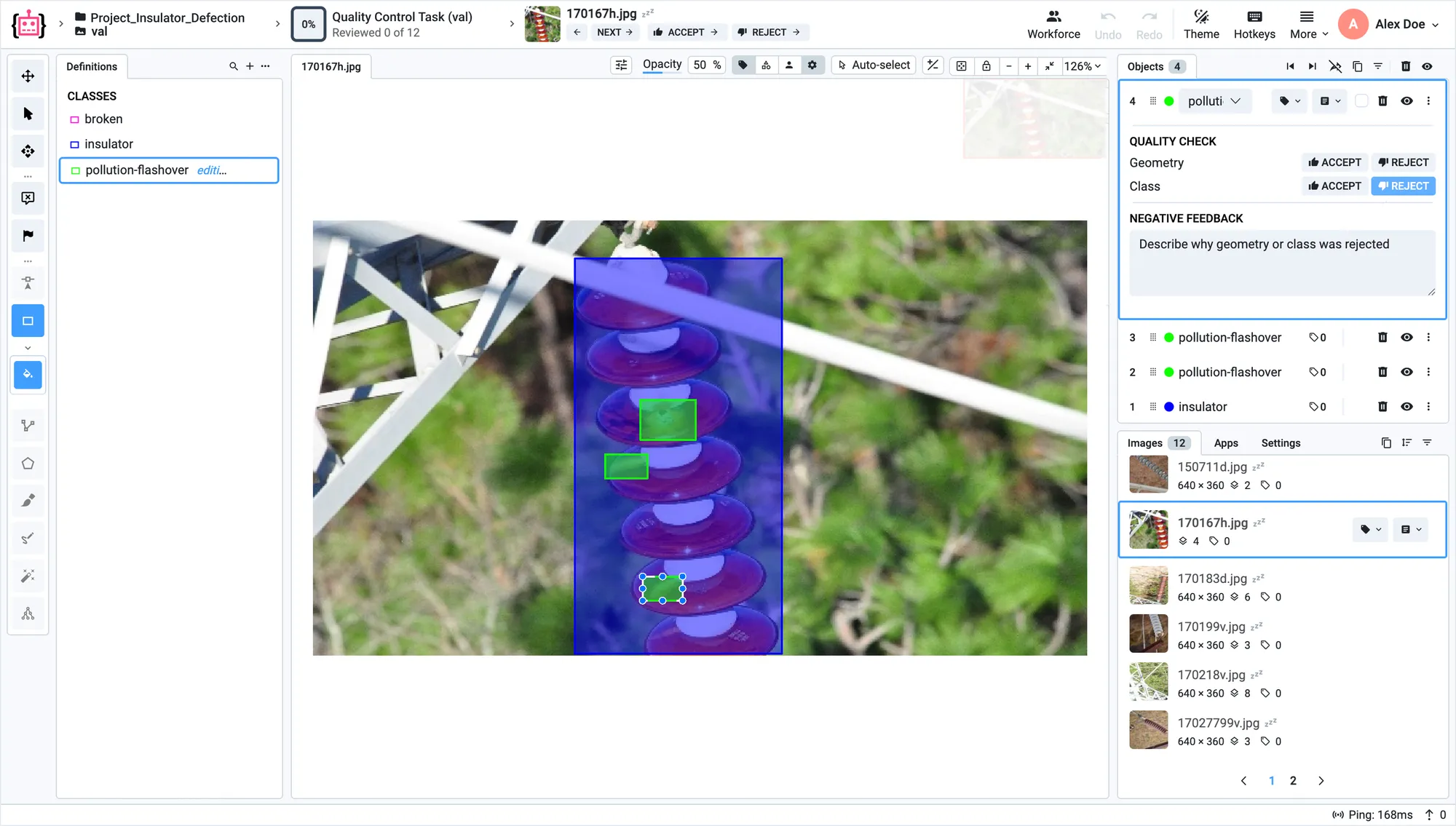
Check each object
A Quality Check panel on every object accepts or rejects its geometry and its class, with a note on what is wrong. Tags are checked the same way, and the main Accept or Reject button settles the rest.
-
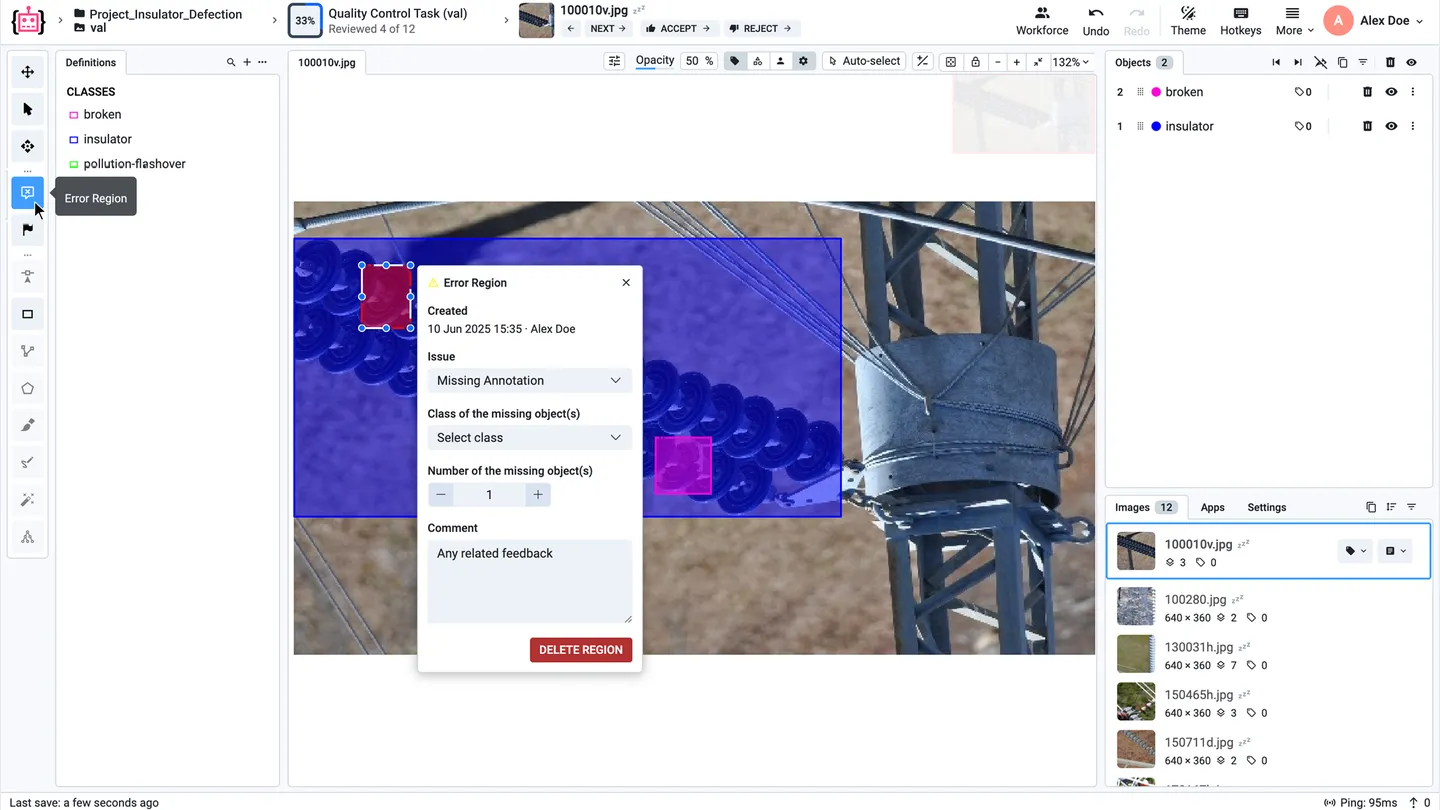
Mark what is missing
Error Region outlines an area with missing labels and records the missing class, the number of objects and a comment.
QC Stats of a Quality Control task
- Geometric Accuracy
- Objects whose geometry was marked correct, out of all reviewed objects.
- Class Accuracy
- Objects whose class was marked correct, out of all reviewed objects.
- Tags Accuracy
- Tags marked correct, out of all reviewed tags.
- Annotations Recall
- Reviewed objects, out of all objects in the task.
- Reviewed Annotations
- How many objects were reviewed, and how many were not.
Labeling consensus shows how far annotators agree.
Several annotators label the same images independently, and the Labeling Consensus app compares every pair of them. Each pair gets a consensus score, from 0% for completely different annotations to 100% for identical ones.
- Objects score
- 71.2%
- Geometry score
- 58.9%
- Tags score
- 60.4%
-
Objects are matched by an IoU threshold you set, for bounding boxes, masks and polygons; image and object tags are compared too.
-
A click on any score opens the report for that pair: precision, recall and F-measure per class, IoU and pixel accuracy, tag scores and the differences on every image.
-
It works while labeling is still in progress, so disagreements show up early.
-
Images that score below a threshold can be copied to another project, tagged or sent to a new labeling job.
-
The app is open source and written in Python: fork it to add majority voting or your own rules.
Consensus is available on the Pro and Enterprise plans. Compare plans
Guides and exams prepare labelers before they touch real data.
Write the annotation policy once as a labeling guide, then check that each new labeler understands it with an exam on a benchmark whose answers they never see.
Labeling guides
Videos, documents and Markdown posts with your annotation policy and examples of good and bad labels. Attach them to labeling jobs and exams.
Labeling exams
The Labeling exams app copies a perfectly labeled benchmark without its labels and gives each examinee a labeling job, for images or videos. Set the classes and tags to label, the pass mark, the IoU matching threshold and the number of attempts.
Exam reports
Every attempt gets an objects score, a geometry score and a tags score, and every image shows the benchmark, the labeler's output and the difference side by side.
When the annotation policy changes, examine the team again: labelers are notified about new exams, and a manager can start new attempts for them, up to the maximum you set.
 insulators benchmark
Issues track every labeling mistake until it is fixed.
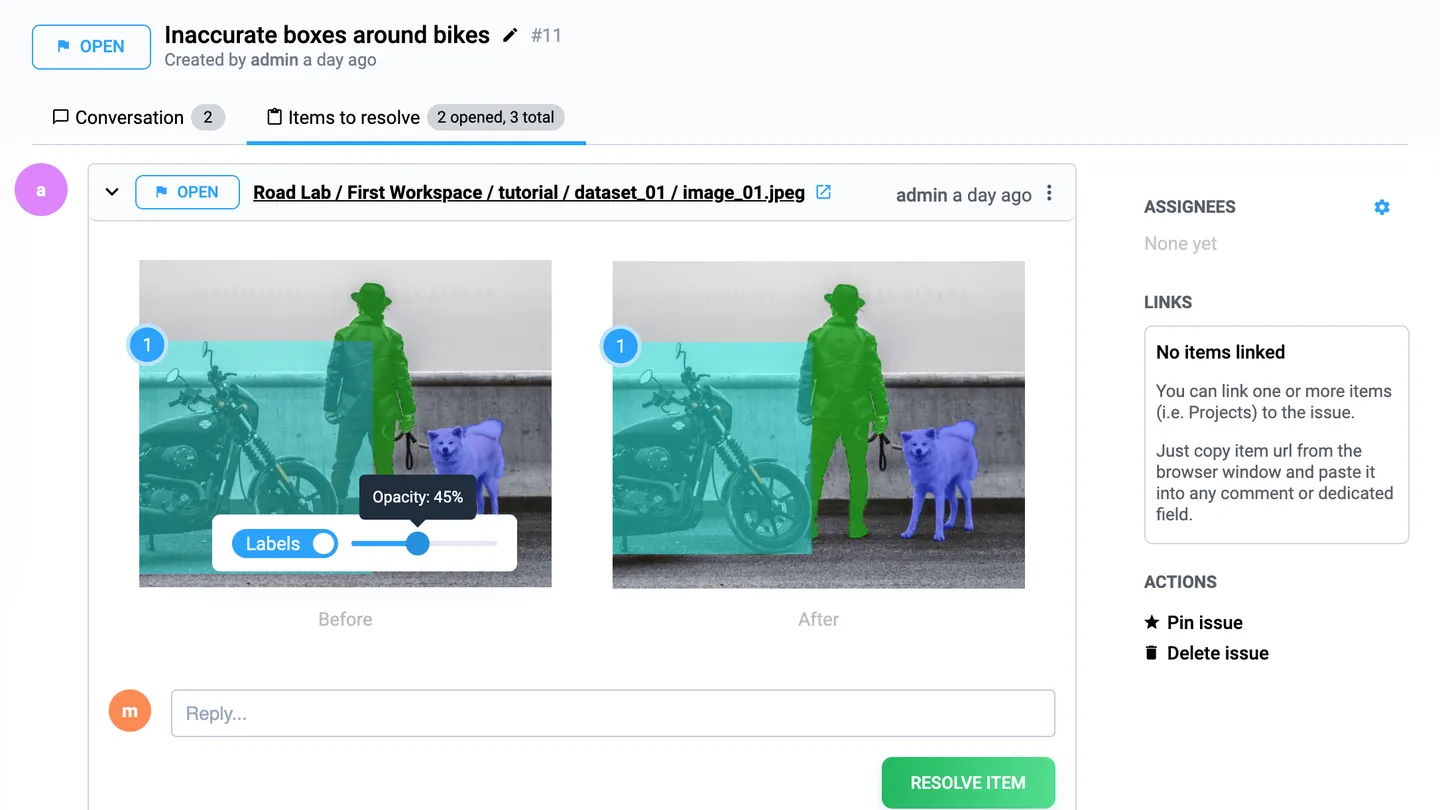
Issues work like GitHub issues, built for annotation. Pin a mistake to an object, an image or a region right in the labeling tool, discuss it, and compare each item's labels before and after the fix before you resolve it.
-
Apply an existing issue to another object or image, so a repeated mistake is tracked and fixed in one place.
-
One issue can collect many items; each has its own thread and is resolved on its own.
-
Before and after: the labels as they were when the issue opened, next to the final ones.
-
Assignees, Markdown comments, links to projects, labeling jobs and neural networks, and the history of every change.
-
Notifications in Supervisely and by email about new jobs and new feedback; a self-hosted instance can also send them to your own server.
Labeling Performance shows speed and quality for every person.
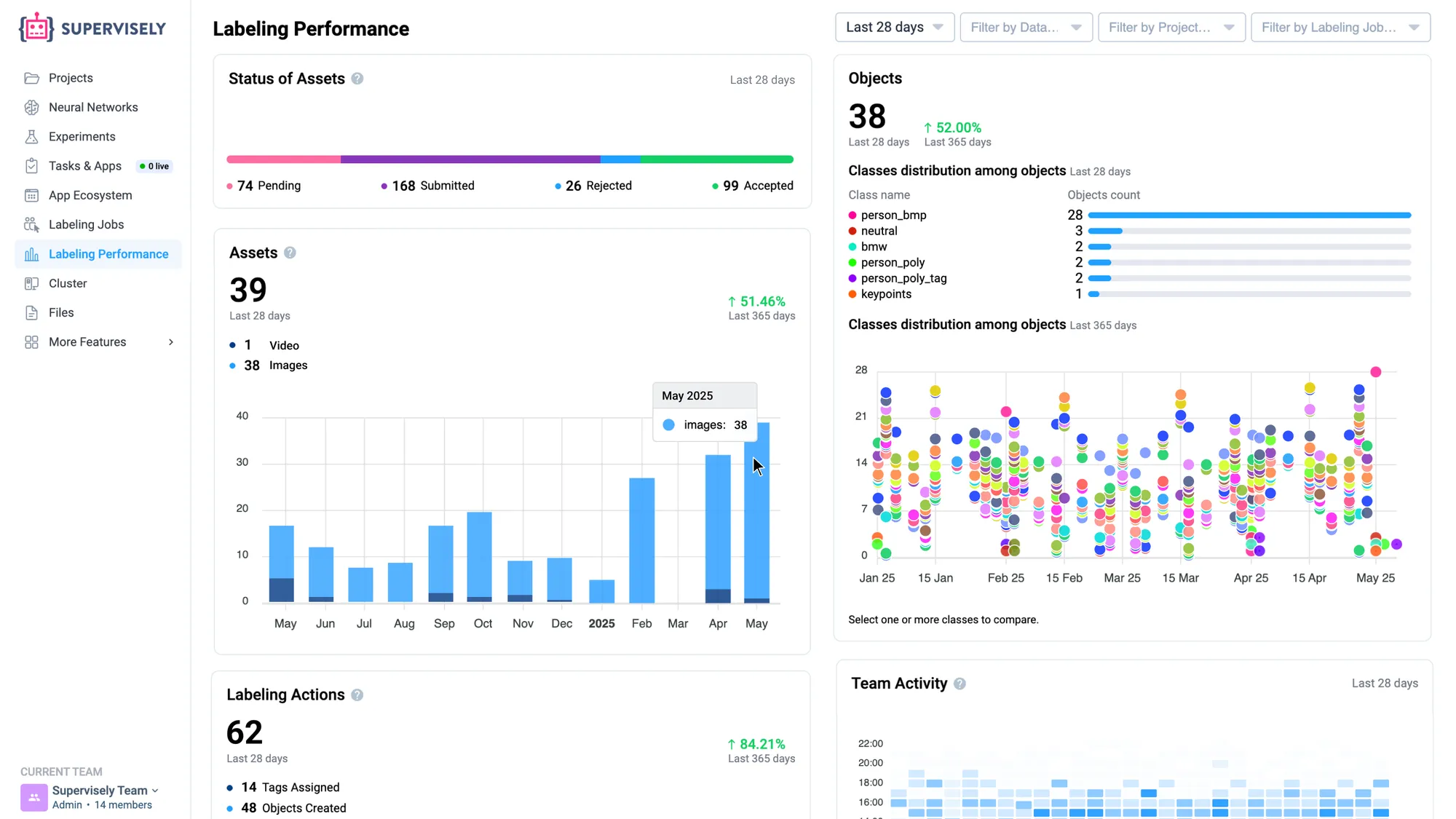
One dashboard for the whole team, free on every plan: how much was labeled and reviewed, how fast, and how much of it reviewers accepted.
Acceptance rate
The share of assets that reviewers accepted, for the team, a project, a labeling job or one member.
Labeling speed
New objects per hour of active work. Idle time of more than 5 minutes is not counted.
Review time
Active time reviewers spend in total and per asset, to balance their workload.
Members table
Objects and tags created, assets submitted, reviewed, accepted and rejected, and labeling time for each person.
Filter by time period, data type, project and labeling job, see each figure against a longer period, and export the report to PDF or Excel. Every labeling job also has its own Stats page, and activity exports to CSV.
Project statistics find dataset errors before training.
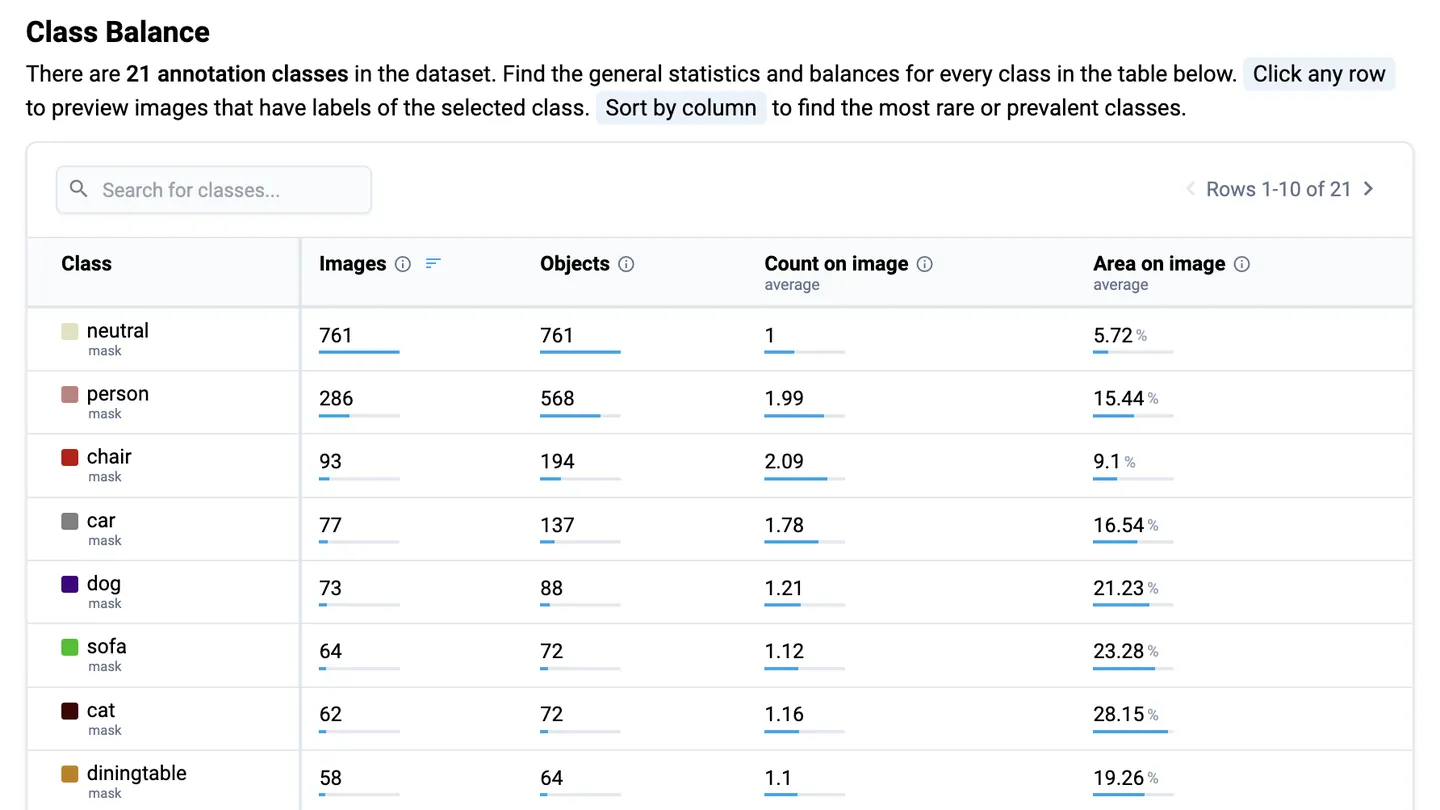
The QA & Stats tab of an image project charts class balance, class co-occurrence, object sizes and where objects sit in the images. Click any cell or row to see the images behind a number and fix them in the labeling tool.
-
Class balance, co-occurrence matrix, per-image and per-dataset tables, object distribution heatmap, class sizes and spatial heatmap.
-
Co-occurrence of image and object tags, and the distribution of categorical tag values.
-
Heatmaps and treemaps download as SVG, PNG or CSV.
-
Selected images can be copied, moved, deleted, tagged or sent to a new labeling job.
Validation schemas keep metadata consistent.
A project can hold a JSON schema for image metadata. Uploads with validation turned on are rejected with a clear error when their metadata does not match, strict mode rejects extra fields too, and images already in the project can be checked for missing and extra fields.
Set up with the Python SDK, on Supervisely 6.12.5 or later.
import supervisely as sly

api = sly.Api.from_env()

# Every image must carry camera and location metadata
schema = {
    "type": "object",
    "required": ["camera", "location"],
}
api.project.set_validation_schema(project_id, schema)

# Uploads whose metadata breaks the schema are rejected
api.image.upload_paths(
    dataset_id, names, paths, metas=metas, validate_meta=True
)

# Images already in the project: missing and extra fields
problems = api.project.validate_entities_schema(project_id)
Frequently asked questions.
How does annotation review work in Supervisely?
Labeling jobs and queues have a review step built in. After annotators submit their work, a reviewer accepts or rejects every item in the labeling tool. Restarting a reviewed job sends its rejected items back for relabeling in a new labeling job, and the Labeling Performance page tracks the acceptance rate. See labeling jobs in the docs.
What is labeling consensus, and how is inter-annotator agreement measured?
Several annotators label the same images independently, and the Labeling Consensus app compares every pair of them. It matches objects by an IoU threshold and gives each pair a consensus score from 0% to 100%, with a detailed report per class and per image. Consensus is available on the Pro and Enterprise plans.
How can I test labelers before they start a project?
Create an exam in the Labeling exams app: pick a perfectly labeled benchmark, the classes and tags to label, a pass mark and the number of attempts. Each labeler labels a copy without the original labels, and every attempt gets a report with objects, geometry and tags scores.
What does Send Sample to QC do?
It creates a Quality Control task from random images of an image project and splits them between the reviewers you choose. Reviewers accept or reject the geometry, class and tags of each object and mark missing labels with Error Region, and the QC Stats of the task report geometric, class and tags accuracy. See labeling quality control in the docs.
Which plans include these quality assurance tools?
Review, labeling jobs and queues, labeling exams, issue tracking and the Labeling Performance page are on every plan, including the free Community edition. Consensus and the full activity log need Pro or Enterprise, and dataset quality assurance is limited on Community. Compare plans.
Can I export only the labels that passed review?
Yes. The Export Items After Review app exports only the accepted images, videos or point clouds of a labeling job, in Supervisely format.