

DICOM annotation tool
for CT, MRI and PET volumes.
The DICOM annotation tool in Supervisely is a medical image annotation toolbox in the browser. It opens CT, MRI and PET volumes from DICOM, NRRD and NIfTI files in axial, sagittal, coronal and 3D views, where teams segment anatomy as 3D masks with brushes, AI and interpolation.
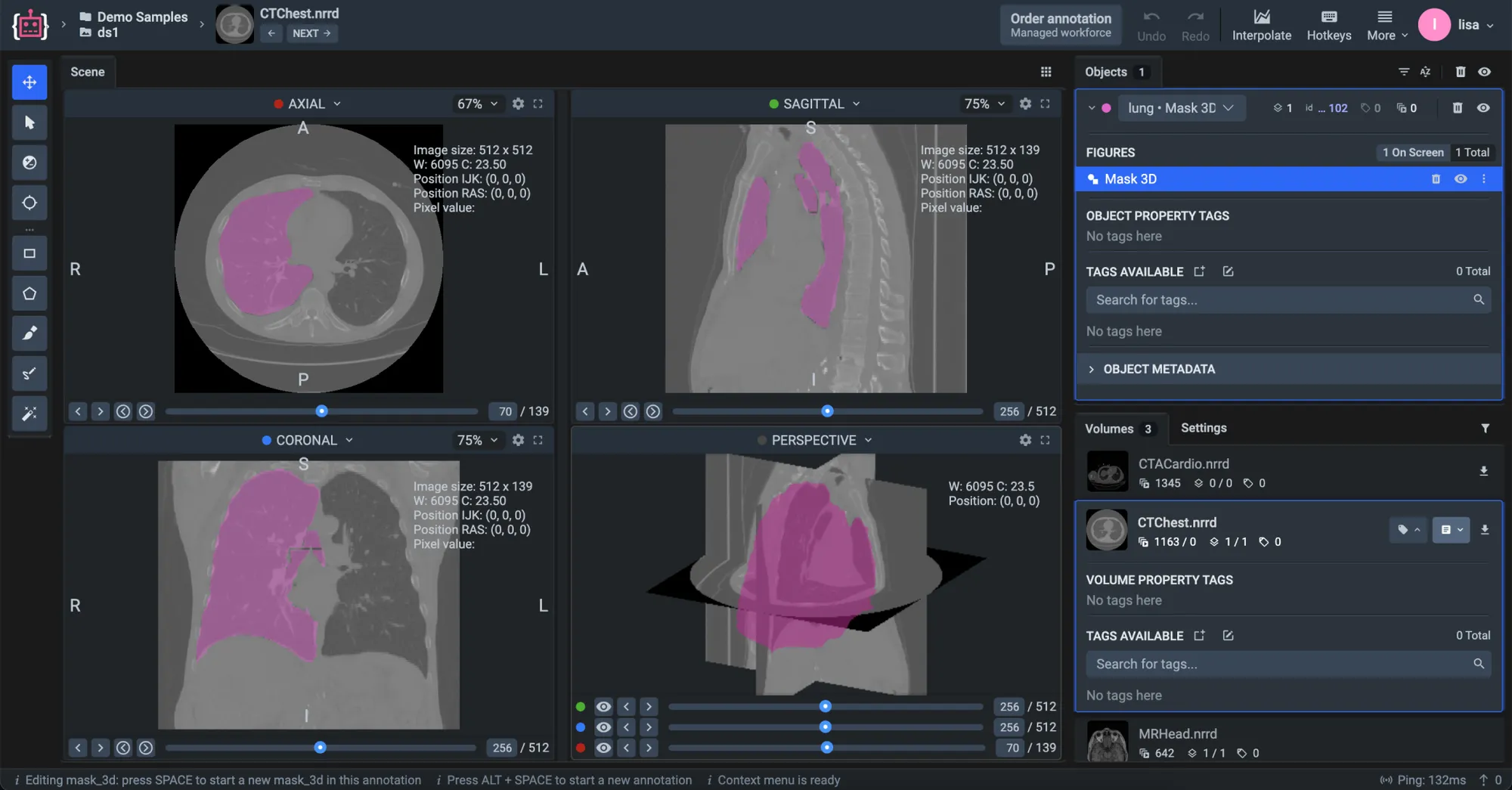
Import DICOM, NRRD and NIfTI volumes.
A volume project holds 3D scans, and each one opens with all its slices in the DICOM toolbox. On upload, every volume is converted to the RAS coordinate system, and the patient name and ID of DICOM files are anonymized.
- .dcm
DICOM
Each series of slices becomes one volume, stored as NRRD.
- .nrrd
NRRD
Single-file volumes, the format Supervisely itself keeps volumes in.
- .nii · .nii.gz
NIfTI
Volumes with their semantic or instance segmentation masks, imported as labels.
- JSON + NRRD
Supervisely format
Volumes with all their annotations, tags and 3D masks, ready to continue labeling.
Surgical videos go to the video labeling toolbox, with AI object tracking: see AI tools for surgical video annotation.
Brush, pen, polygon and box tools on every plane.
Draw on the axial, sagittal or coronal plane, with windowing and a crosshair to read every slice. Whatever plane you draw on, a Mask 3D object is one volumetric mask, shown on all planes and in the 3D view.
-
Paint a mask and erase what spills over, changing the brush size on the fly. The brush draws Mask 3D objects and 2D bitmaps.
-
Trace a fine outline along an edge, and the shape fills as soon as the outline closes. The pen also cuts a shape out of a mask.
-
Outline a structure point by point on any slice when it does not need pixel precision.
-
Mark where an object is without tracing its outline.
Tags
Tag objects and whole volumes, with or without a value: a number, text or one of a list.
Undo and restore
Undo and redo any step, and bring deleted objects back in restore mode.
Hotkeys
Keyboard shortcuts switch tools, objects and display settings.
The Smart Tool segments a slice from one box.
AI-assisted labeling works on every slice: frame a structure with a box, and an interactive segmentation model draws its mask. Green and red clicks add or remove areas until the mask fits.
-
Interactive models
The Smart Tool runs Segment Anything (SAM) and other interactive segmentation models on medical slices. Several can run at once, and you switch between them as you go.
-
Your own model
Serve a model trained on your own scans, and the Smart Tool uses it like the others.
-
With interpolation
Segment a few key slices with the Smart Tool, and interpolation builds the 3D mask between them.
-
Where it runs
In Supervisely Cloud, interactive models are already deployed for every user. Enterprise runs them on your own GPUs.
Label key slices, and interpolation builds the 3D mask.
A lung or a tumor in a CT or MRI volume can span hundreds of slices. Label it on a few of them, press Interpolate, and the object is reconstructed across the slices in between.
-
Label key slices
Draw the object on a few slices with the brush, the pen or the Smart Tool, in one plane or across axial, sagittal and coronal.
-
Interpolate
The Interpolate button runs the Volume Interpolation app. Its ITK-based morphological contour interpolation matches the shapes on neighbouring labeled slices and fills the transition between them.
-
Check it in 3D
The labeled slices and the result form one 3D object. Preview it in the 3D view and edit it on any plane; if it is off, undo, add a slice in between and run it again.
Interpolation comes with Enterprise, and with Pro through its Medical Max add-on. Compare plans
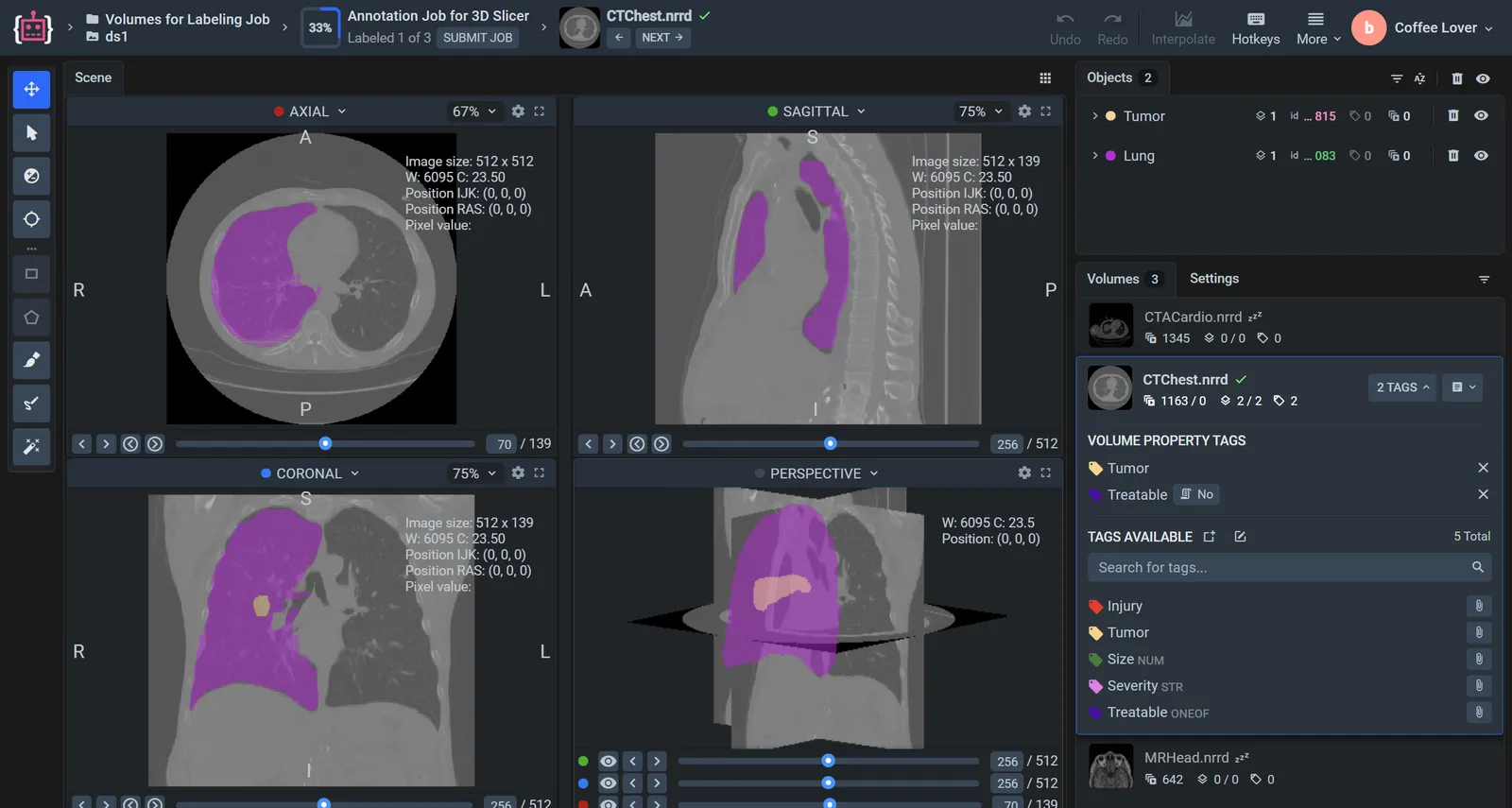
Axial, sagittal, coronal and 3D views on one screen.
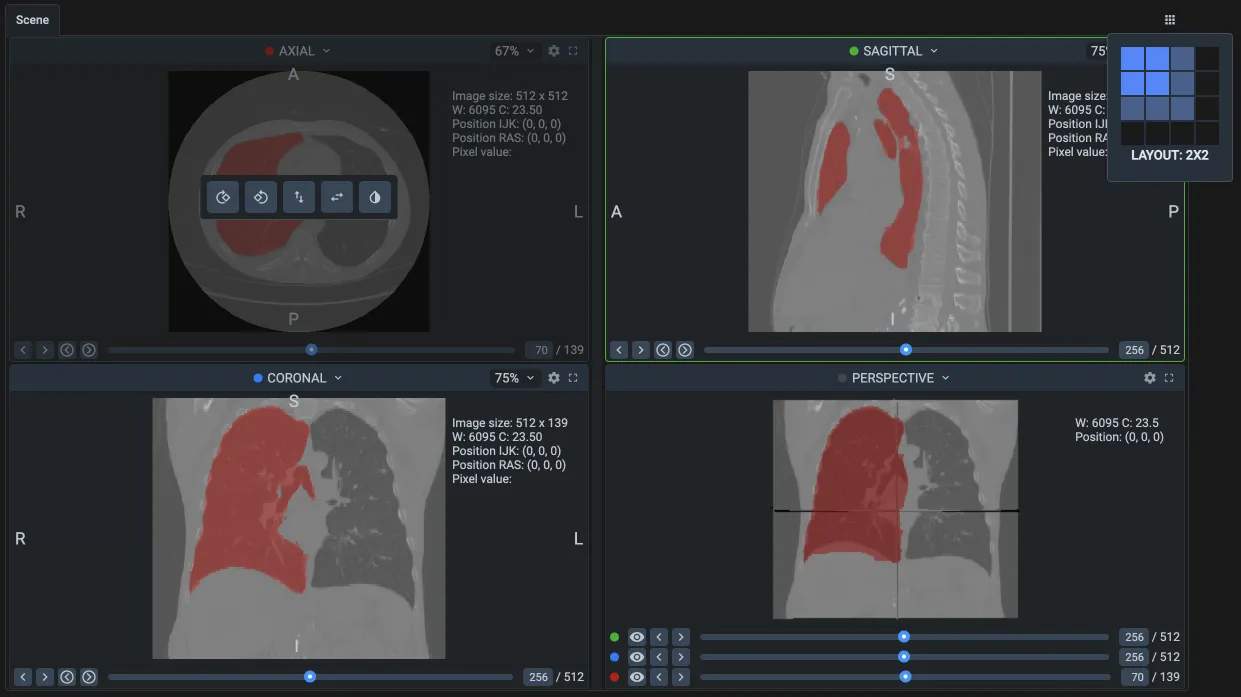
The scene follows the conventions of ITK-SNAP, 3D Slicer and MITK, so doctors and other medical experts start labeling with little to learn. Each view shows its orientation letters, the window width and center, the IJK and RAS position and the pixel value.
-
Windowing
Medical images hold thousands of grey levels, and a screen shows 256. Drag to set the window width and center, or pick a preset.
-
Crosshair
One click jumps to a point on every plane. Drag it, and the other views and the 3D view follow.
-
3D view
The slice planes and the masks in 3D. Move a slice from its slider, or hide a plane to see inside.
-
Layouts up to 4 × 4
Start from 2 × 2 and add views, for example several axial views at different zoom. Any view can switch plane or go fullscreen.
-
View settings
Zoom each view from 25% to 300%, rotate it by 90°, flip it or invert its colors.
-
In the browser
Nothing to install on annotators' computers: open your Supervisely address and start labeling.
Work on labeling jobs from 3D Slicer.
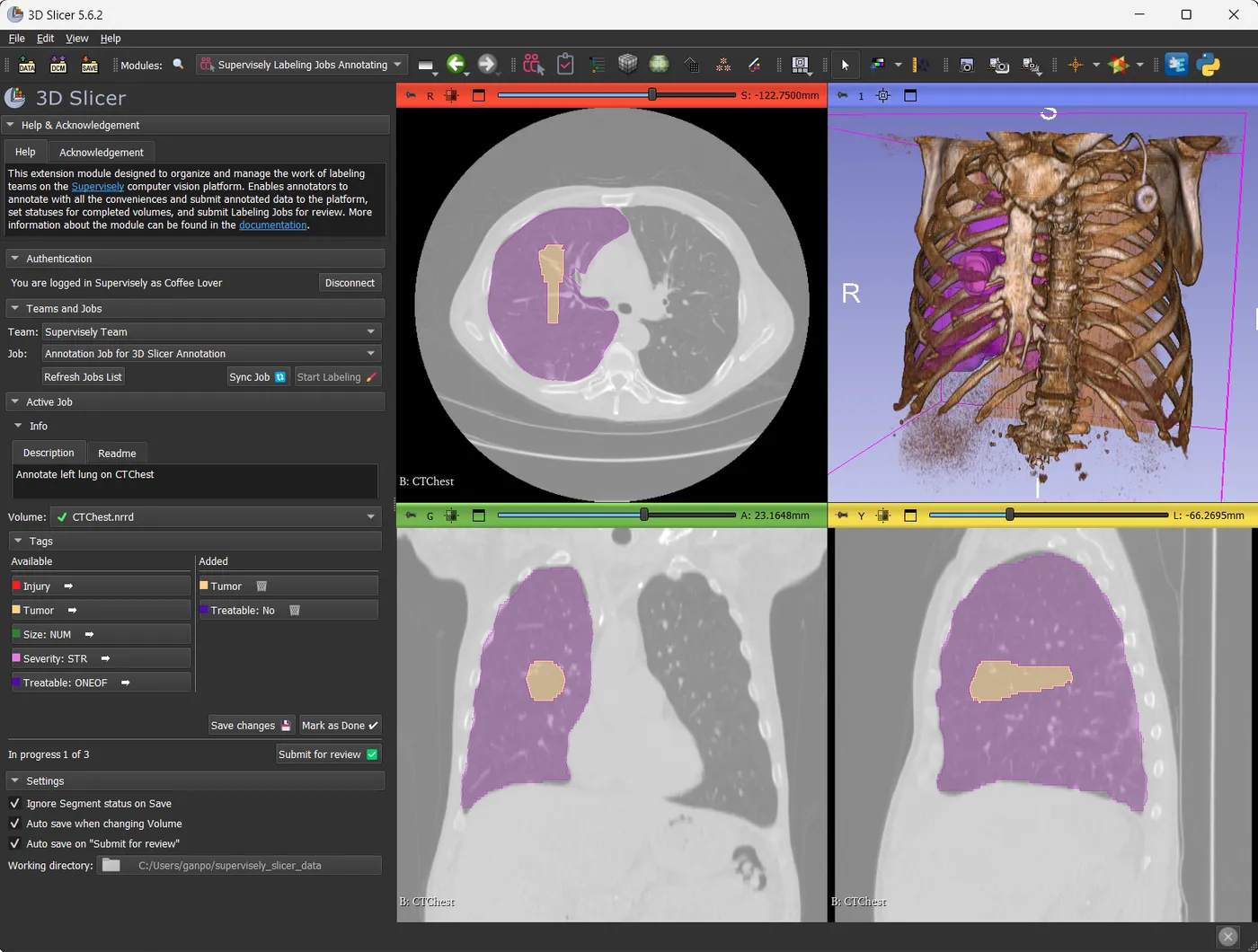
The ConnectToSupervisely extension opens your Supervisely labeling jobs inside 3D Slicer. Annotators label with 3D Slicer's own tools, and the results go back to the same project, ready for review in either app.
-
Connect
Install the extension from 3D Slicer's Extensions Catalog, sign in to app.supervisely.com or your Enterprise address, and pick a team and a labeling job.
-
Label
The job's volumes download to a working folder. Each class becomes a segmentation and each object a segment; tag the volume and mark it as done.
-
Review
Submit the job for review. Reviewers accept or reject volumes in the extension's reviewing module or in the browser, and restart the job with the rejected ones.
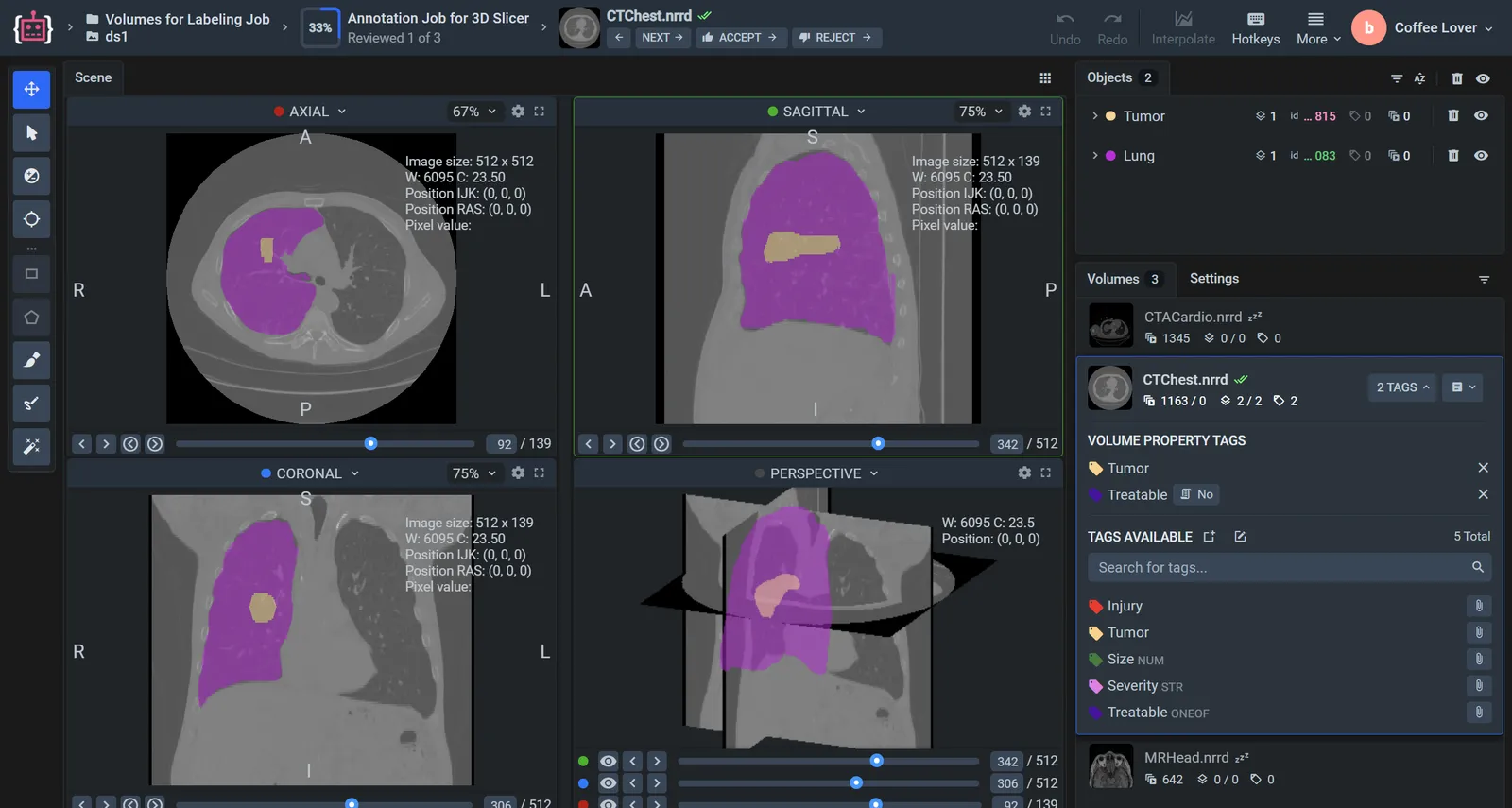
Labeling jobs and review work the same for volumes.
Split a volume project into labeling jobs, and review every volume in the same toolbox, with no files sent back and forth.
-
Manager
Creates labeling jobs with their annotators, reviewer, classes, tags and instructions, and follows the work in Labeling Performance, which counts DICOM volumes too.
-
Annotator
Follows the job's progress in the toolbox's top bar, labels each volume and submits the job for review.
-
Reviewer
Accepts or rejects each volume from the top bar. Restarting the job sends the rejected volumes back for another pass.
Volumes come in and go out in open medical formats.
Drop scans into a new volume project, and take the labels back out in formats that 3D Slicer and MITK open directly.
Import
- Drag and drop Create a project for DICOM 3D volumes and drop the files in. Supervisely detects the format and builds the volumes.
- Cloud storage On Enterprise, import DICOM and NRRD volumes from Amazon S3, Google Cloud Storage, Azure or S3-compatible storage.
- Python SDK Upload DICOM series and NRRD files from code, with the same anonymization.
Export
- Supervisely format JSON annotations with NRRD volumes, and the 3D masks as NRRD files, one per object or all objects in one semantic mask.
- NIfTI Semantic or instance segmentation masks in NIfTI files.
- Meshes 3D masks as STL or OBJ surfaces.
- Versions and cloud Project Versions save the state of a volume project on Pro and Enterprise, and Enterprise exports projects to cloud storage.
Frequently asked questions.
Which file formats does the DICOM annotation tool support?
Volumes in DICOM (.dcm series), NRRD (.nrrd) and NIfTI (.nii, .nii.gz), and projects in Supervisely format. NIfTI files can bring semantic or instance segmentation masks along as labels. Single DICOM, NRRD and NIfTI images open in the image labeling toolbox. See the volume formats in the docs.
Can I label CT and MRI scans in 3D?
Yes. Every volume opens in axial, sagittal, coronal and 3D views, and Mask 3D objects are drawn and edited on any plane. Label a few key slices, and the Volume Interpolation app reconstructs the object across the slices in between.
Which AI models help with medical image segmentation?
The Smart Tool runs interactive segmentation models, such as Segment Anything, on the slice you label: frame a structure with a box and correct the mask with clicks. You can switch between models or serve one you trained. See AI-assisted labeling.
How is patient data protected?
DICOM imports anonymize patient names and IDs by default. Team roles control who sees each project, and the Enterprise edition runs on your own servers, even without internet access. See security and permissions.
Does Supervisely work with 3D Slicer?
Yes. With the ConnectToSupervisely extension, annotators and reviewers work on Supervisely labeling jobs inside 3D Slicer, and exported NRRD volumes and masks open in 3D Slicer and MITK as they are. See how to use 3D Slicer with Supervisely.
Can I use the DICOM toolbox for free?
Yes. The free Community plan includes the DICOM toolbox with multi-planar and 3D views and all medical formats, for up to 50 files. Interpolation comes with Pro and its Medical Max add-on, which raises the limit to 50,000 files or more, and with Enterprise, which has no file limit. Compare plans.